Case study · Client name withheld
Wine and Spirits Shopping App
A premium liquor boutique's collection, events and delivery in one app
The client runs a premium liquor store with a wide range of wines, whiskies, beers and spirits. Our team developed the mobile app that extends the store to the phone: customers sign in with their mobile number, confirm their age, browse the collections, register for in-store events and set up a delivery address.
- Client
- Premium wine and spirits retailer
- Platforms
- iOS
- Our scope
- Mobile app development
The product
What it does, and for whom
The aim was to carry the store's refined, in-store experience over to digital discovery and buying, for casual buyers and connoisseurs alike. The app keeps the store's dark and cream look, opens with an OTP sign-in and an age check, and is organised around five tabs — Home, Events, Shop, Search and Cart.
Scope The store, its range, events and loyalty scheme are the client's. Our work was the mobile app described here. To keep the client confidential, the screens on this page are recreated from the delivered app with neutral naming, invented products and events, and example addresses.
Our contribution
What our team built
Mobile app development
The customer app: mobile-number sign-in with OTP, the age check, collections, events with registration, location and delivery addresses, orders with reward points, favourites and the side menu.
User flow
Into the store
An age check first, then the collections and the store's events.
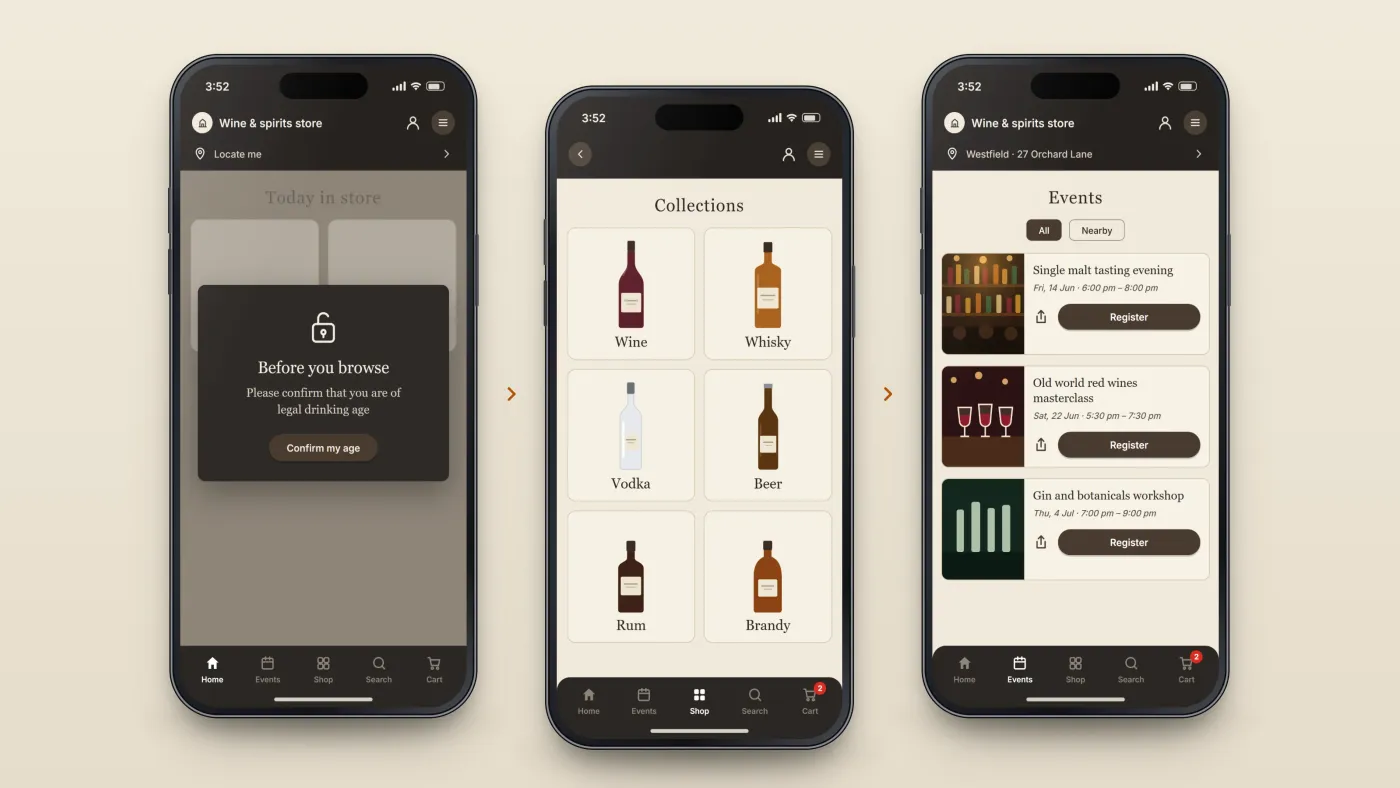
Confirm age
The app asks visitors to confirm they are of legal drinking age.
Browse collections
Wine, whisky, vodka, beer and more.
Join an event
Tasting evenings and masterclasses with a register button.
The product in use
Inside the app
Collections and events
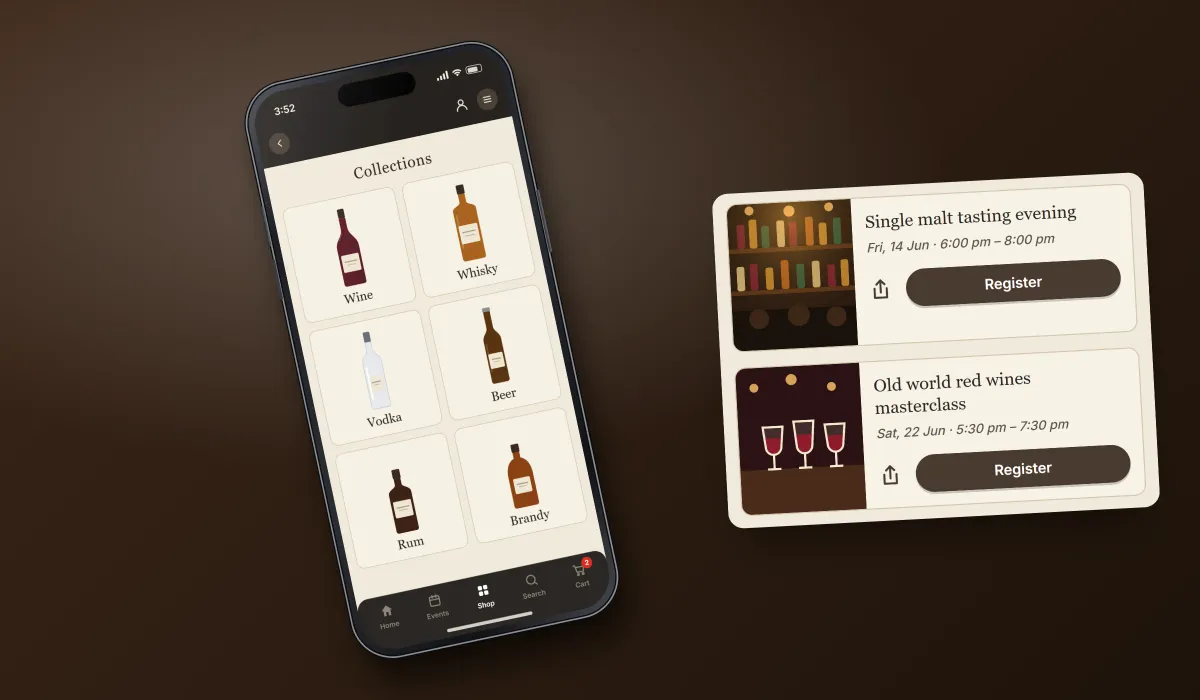
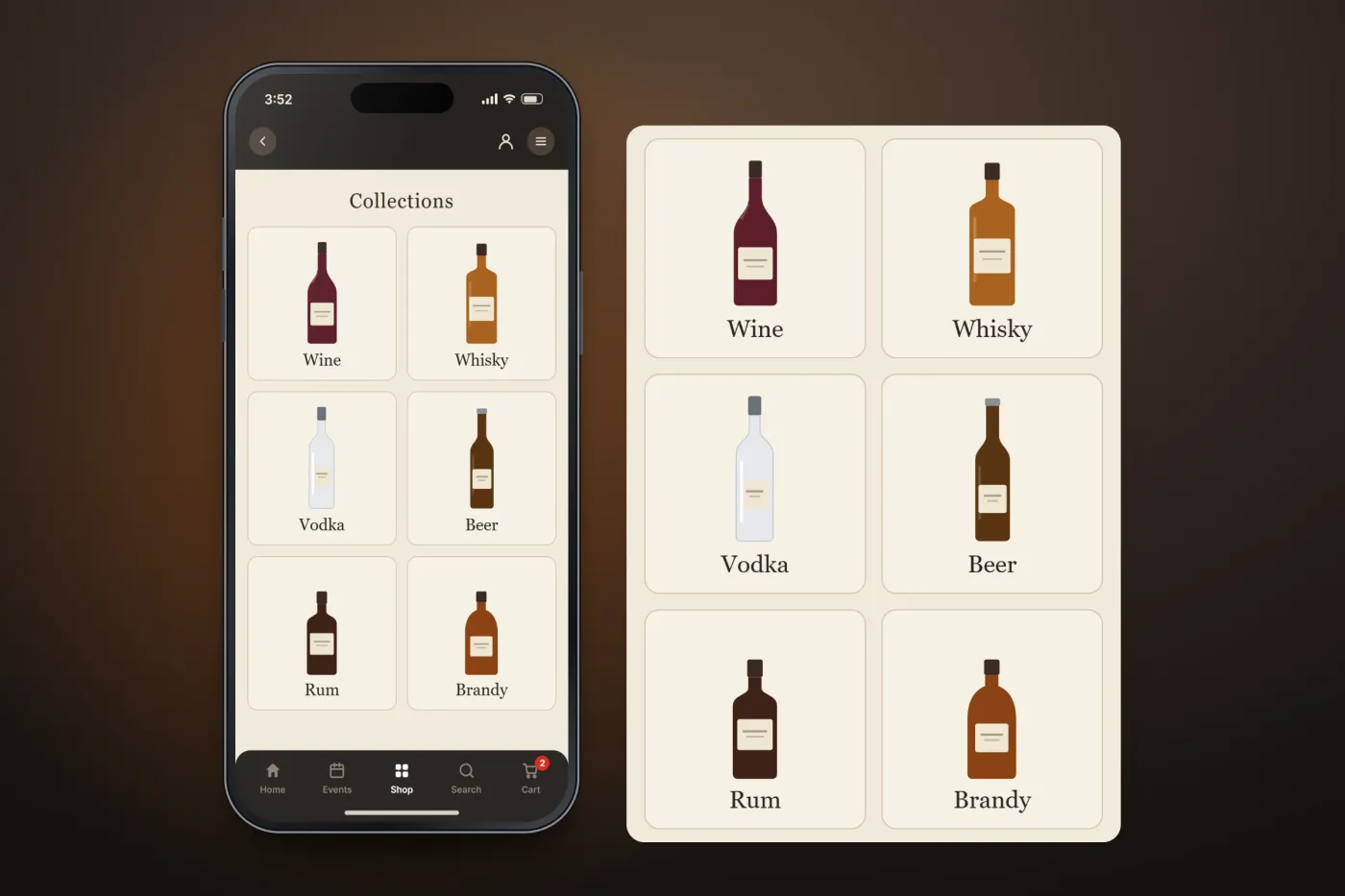
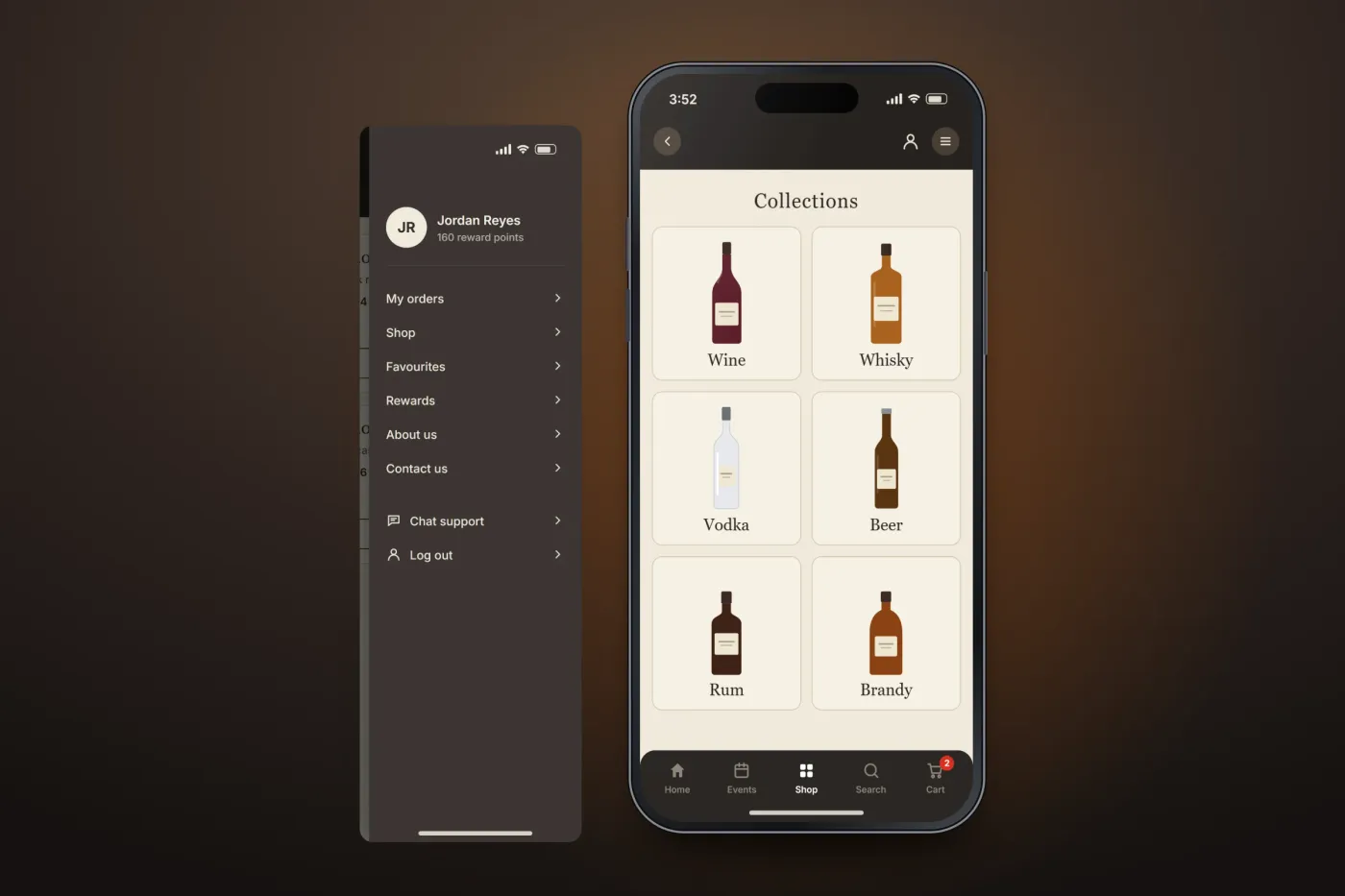
The Shop tab opens on the store's collections, one tile per category such as wine, whisky, vodka and beer. The Events tab lists the store's events, filtered by all or nearby, each with its date and time, a share button and a Register button.
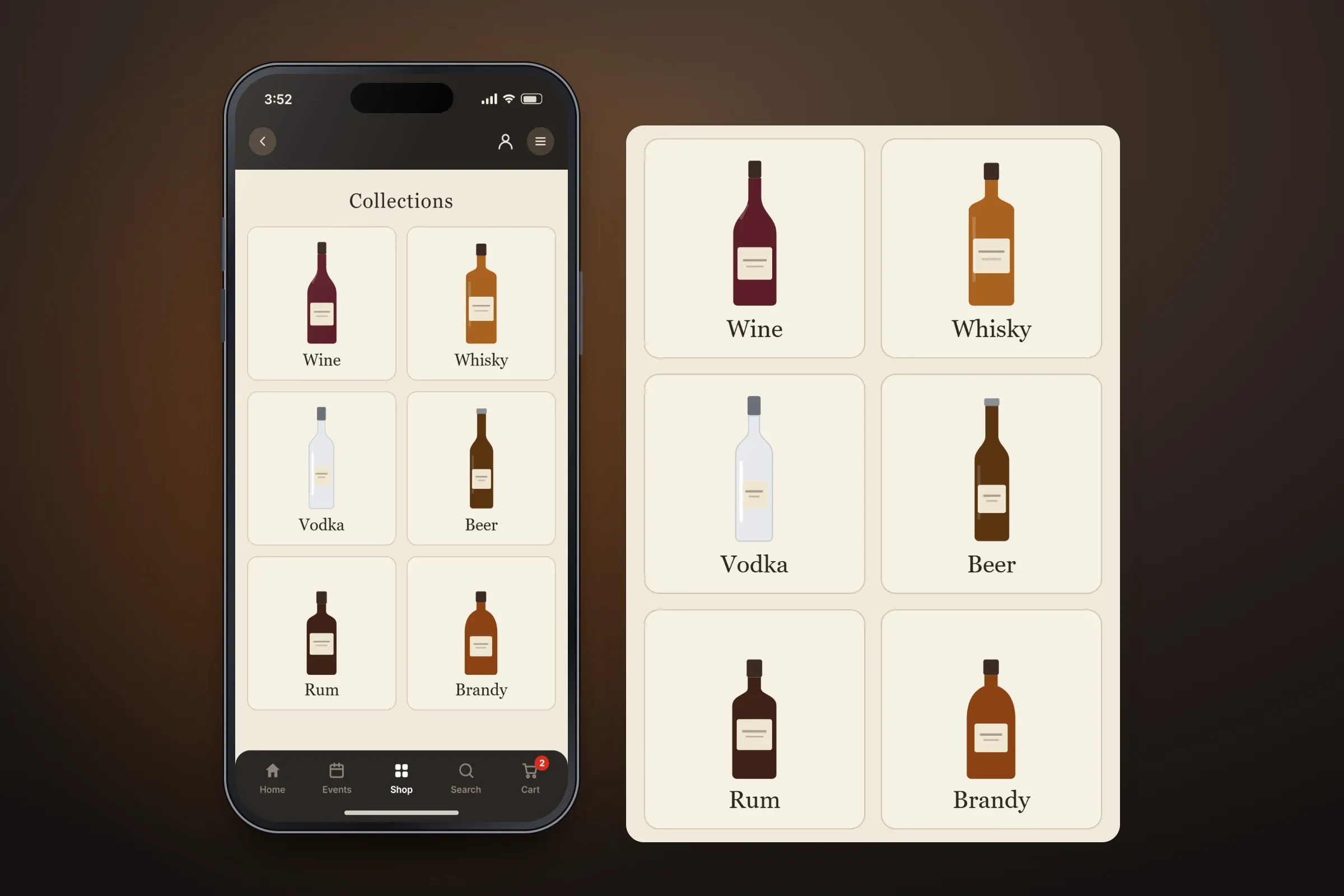
Collections by category. Close-ups on phones: tap any image for the full screen. Sign-in and age check
Customers sign in with their mobile number and a one-time password, accepting the terms and confirming their age on the way in. Before the store opens, an age check asks them to confirm they are old enough to browse and order.
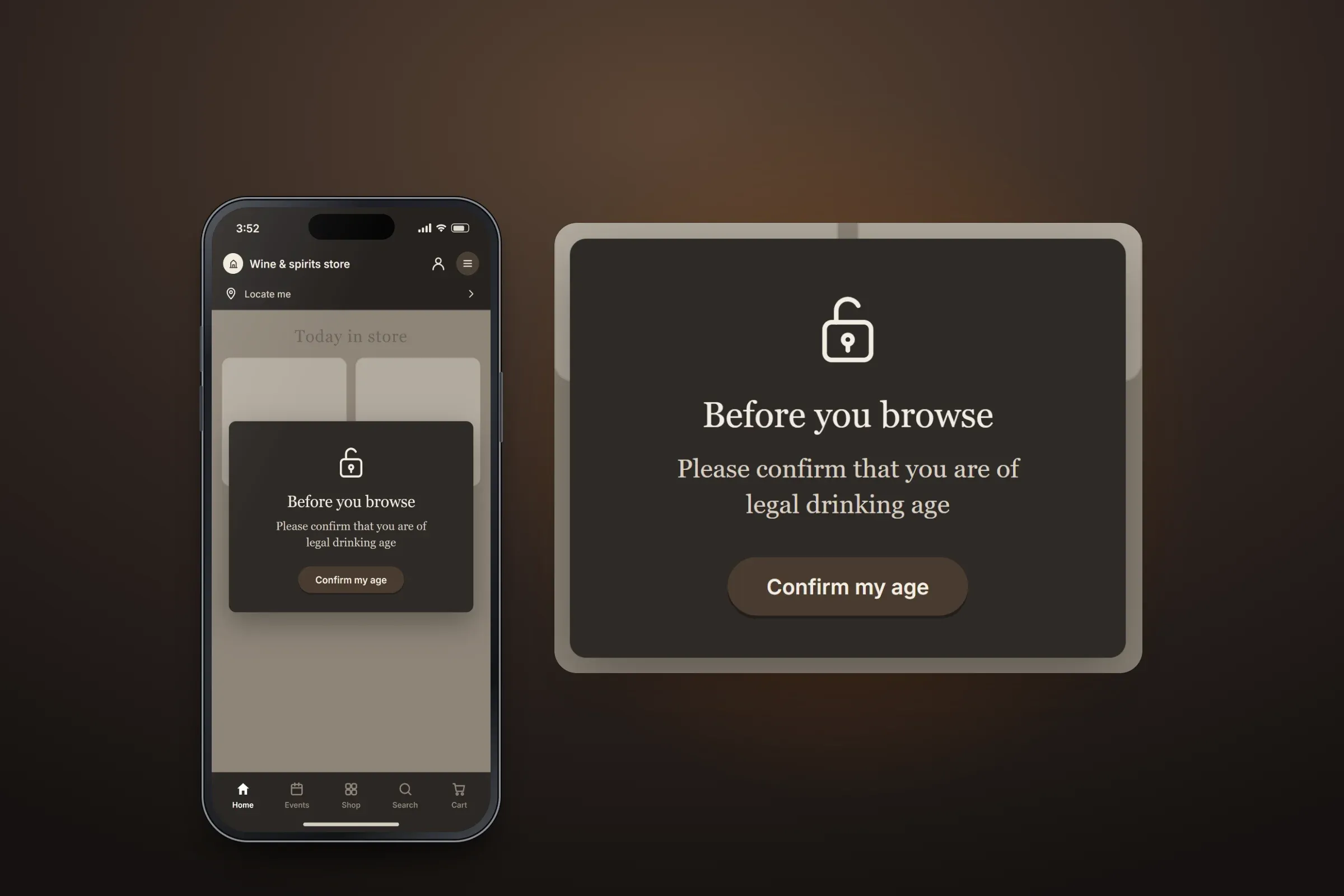
OTP sign-in. Close-ups on phones: tap any image for the full screen. Location and delivery address
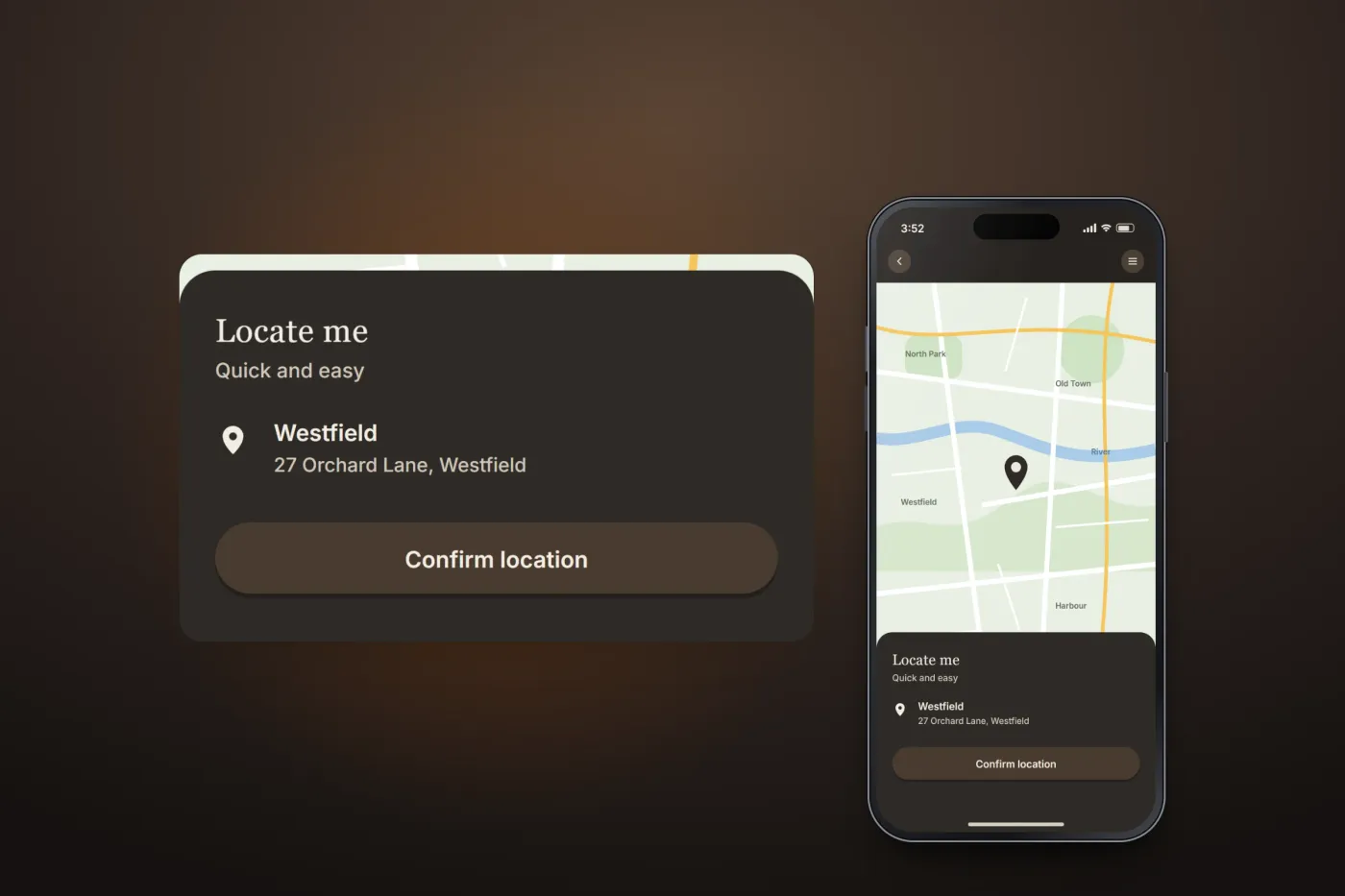
Locate Me finds the customer's position on a map and confirms the address in a bottom sheet. A form then saves the full delivery address — name, phone, email, flat and street, landmark and area — with the option to make it the default.
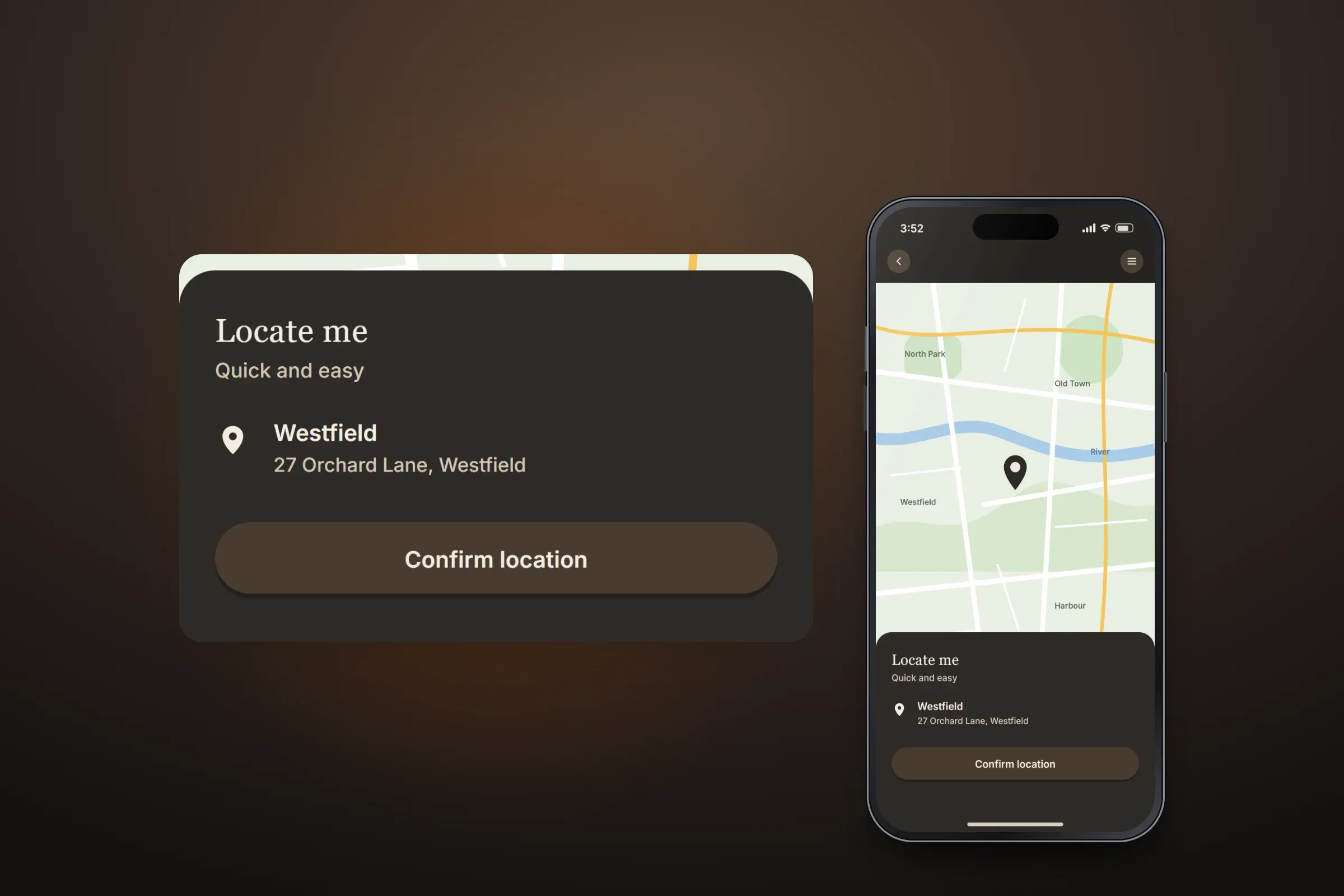
Locating the customer. Close-ups on phones: tap any image for the full screen. Orders, rewards and support
The side menu leads to orders, the shop, favourites, rewards, information about the store, contact and chat support. Each past order shows its number, items, the points it earned and its total, with a button to select items from it again.
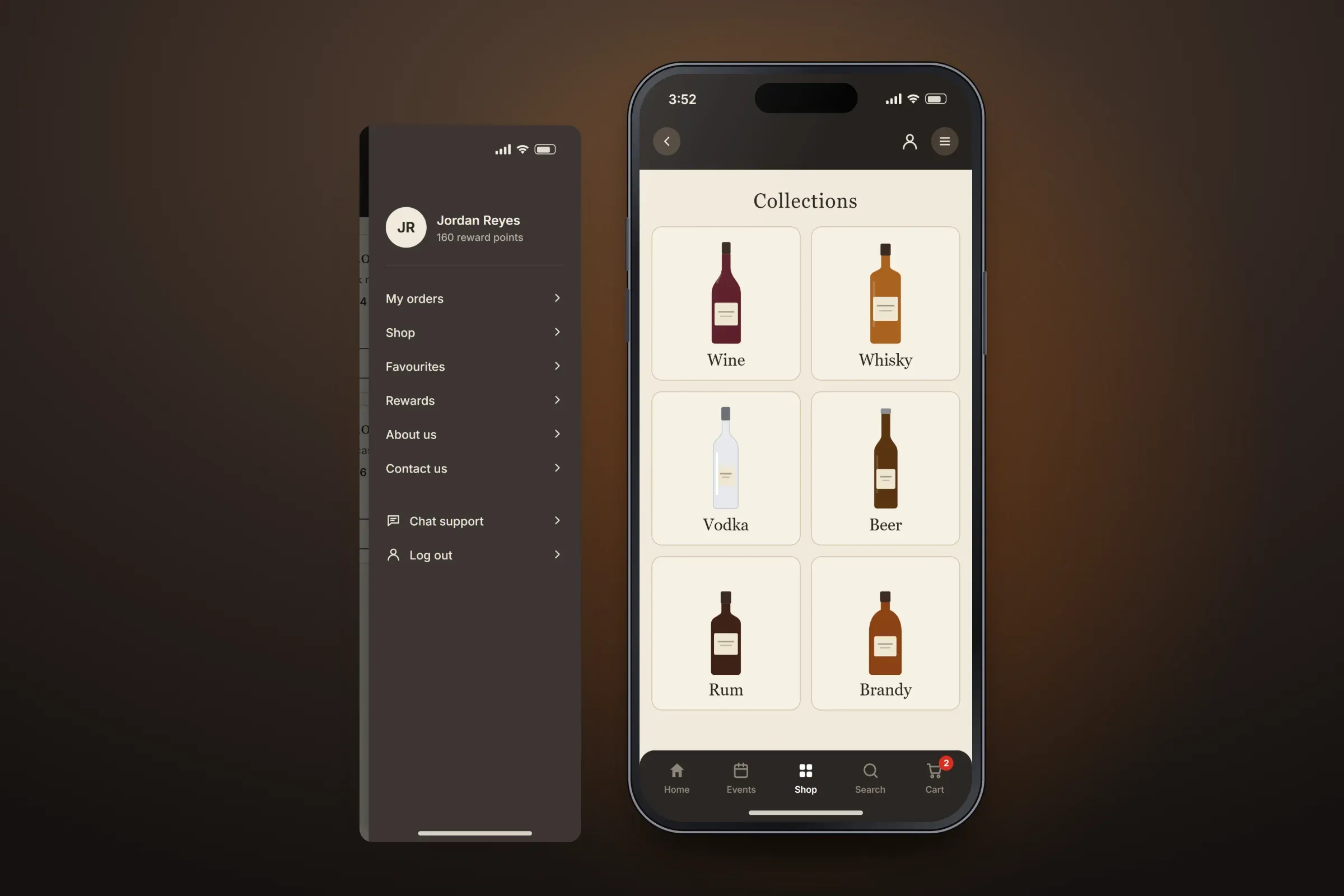
The side menu.

About these images: the screens are recreated from the delivered app for this case study, with neutral naming, invented products and events, and example addresses in place of the client's brand and content. They follow the app's real screens and functions, but they are not screenshots of it.
Related services