Case study · Client name withheld
Warehouse Management Mobile App
The mobile side of a company's in-house warehouse management system
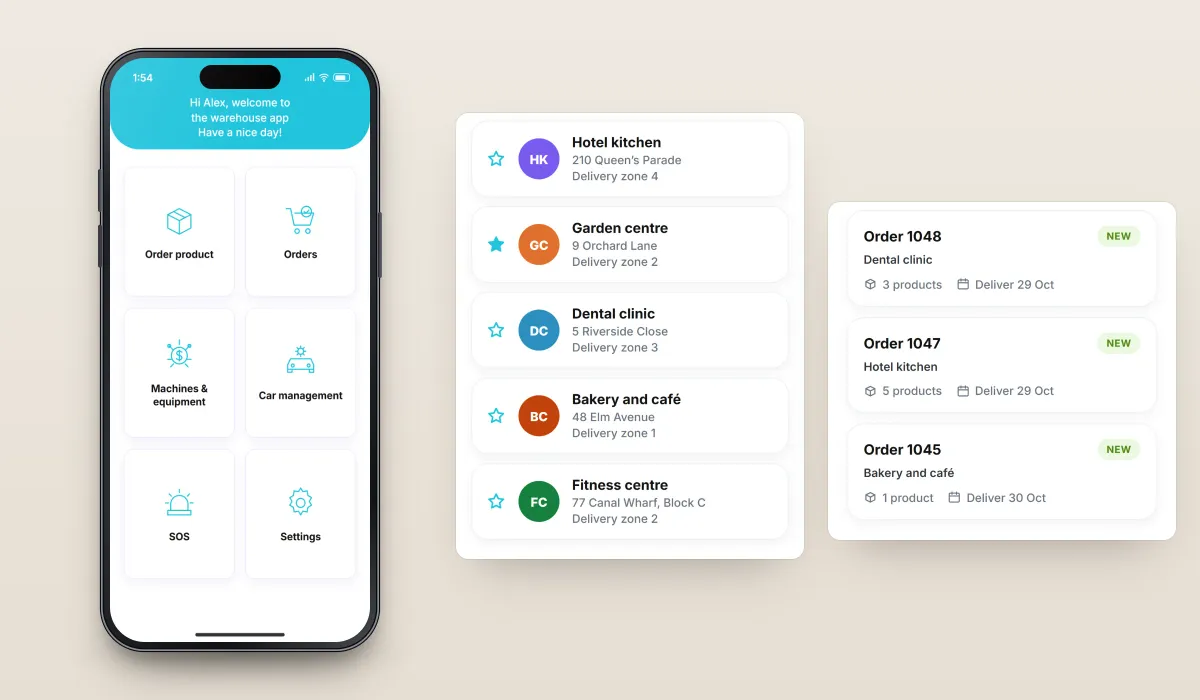
The client runs its own warehouse operations and needed a warehouse management system its staff could use from their phones. Our team developed the mobile app: customers and orders, machines and equipment, company cars and an SOS section for reporting accidents, all reached from one home screen.
- Client
- Warehouse and logistics operator
- Platforms
- iOS
- Our scope
- Operations · Vehicles and safety · Account
The product
What it does, and for whom
A warehouse runs on many small, everyday tasks done away from a desk. The app puts them on the phone so staff can work through them where they are and the information reaches the system in near real time: find a customer, follow new and accepted orders, handle the company's vehicles, and report an accident or a close call straight away. The order cards shown on this page are illustrative example data.
Scope The warehouse processes and the wider management system are the client's. Our work was the mobile app. To keep the client confidential, the screens on this page are recreated from the delivered app with neutral naming and example data.
Our contribution
What our team built
Operations
Customers, orders with new and accepted tabs, machines and equipment, and ordering products from the home screen.
Vehicles and safety
Car management for pick-up, return, refuelling and repair requests, and the SOS section for reporting close calls and accidents.
Account
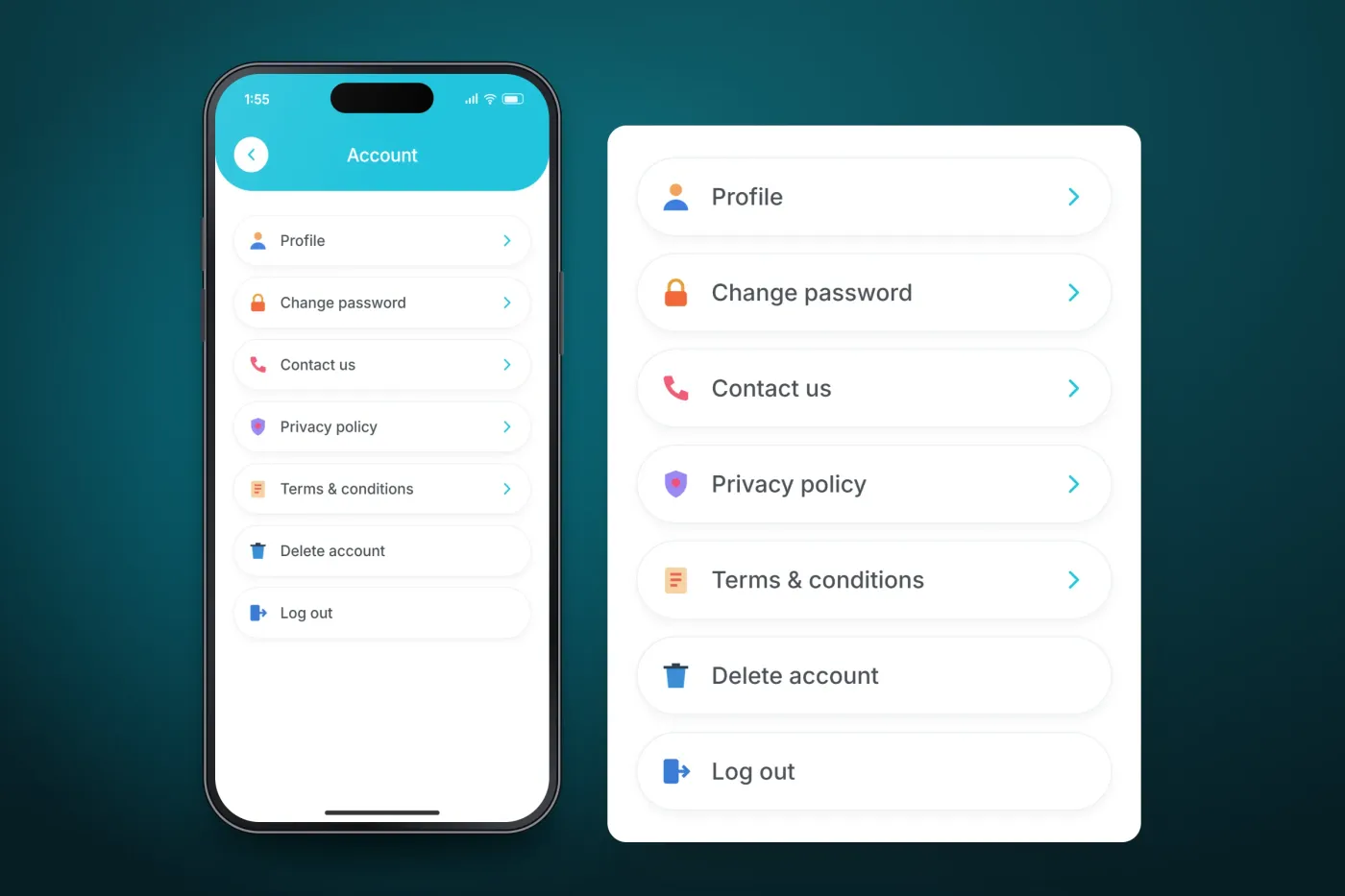
Profile, password, contact details, privacy policy and terms, account deletion and log out.
User flow
A staff member's path through the app
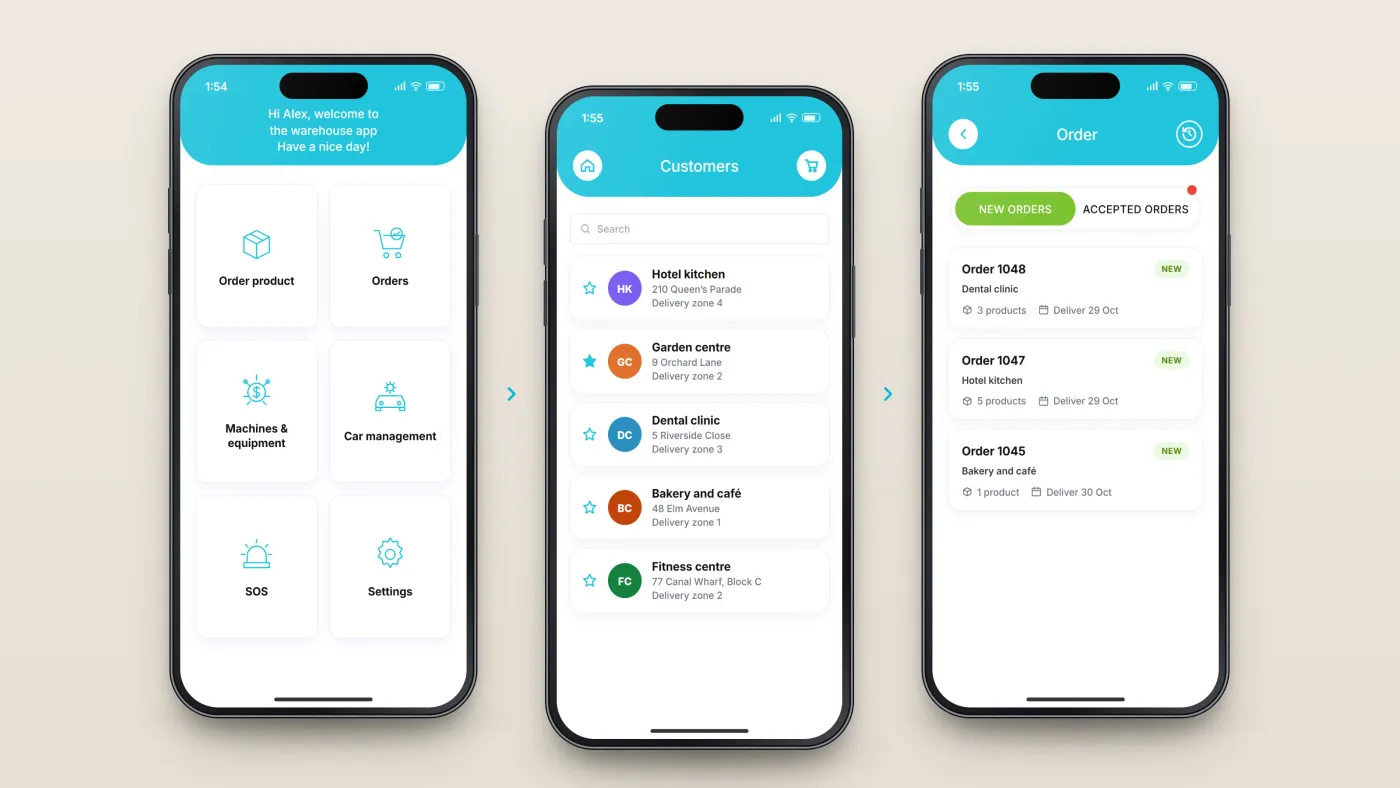
Everything starts from one home screen of tiles.
Start from the home screen
Order product, orders, machines and equipment, car management, SOS and settings.
Find the customer
A searchable customer list with favourites.
Work the orders
Separate tabs for new and accepted orders, a marker for new activity and a history view.
The product in use
Inside the app
Customers and orders
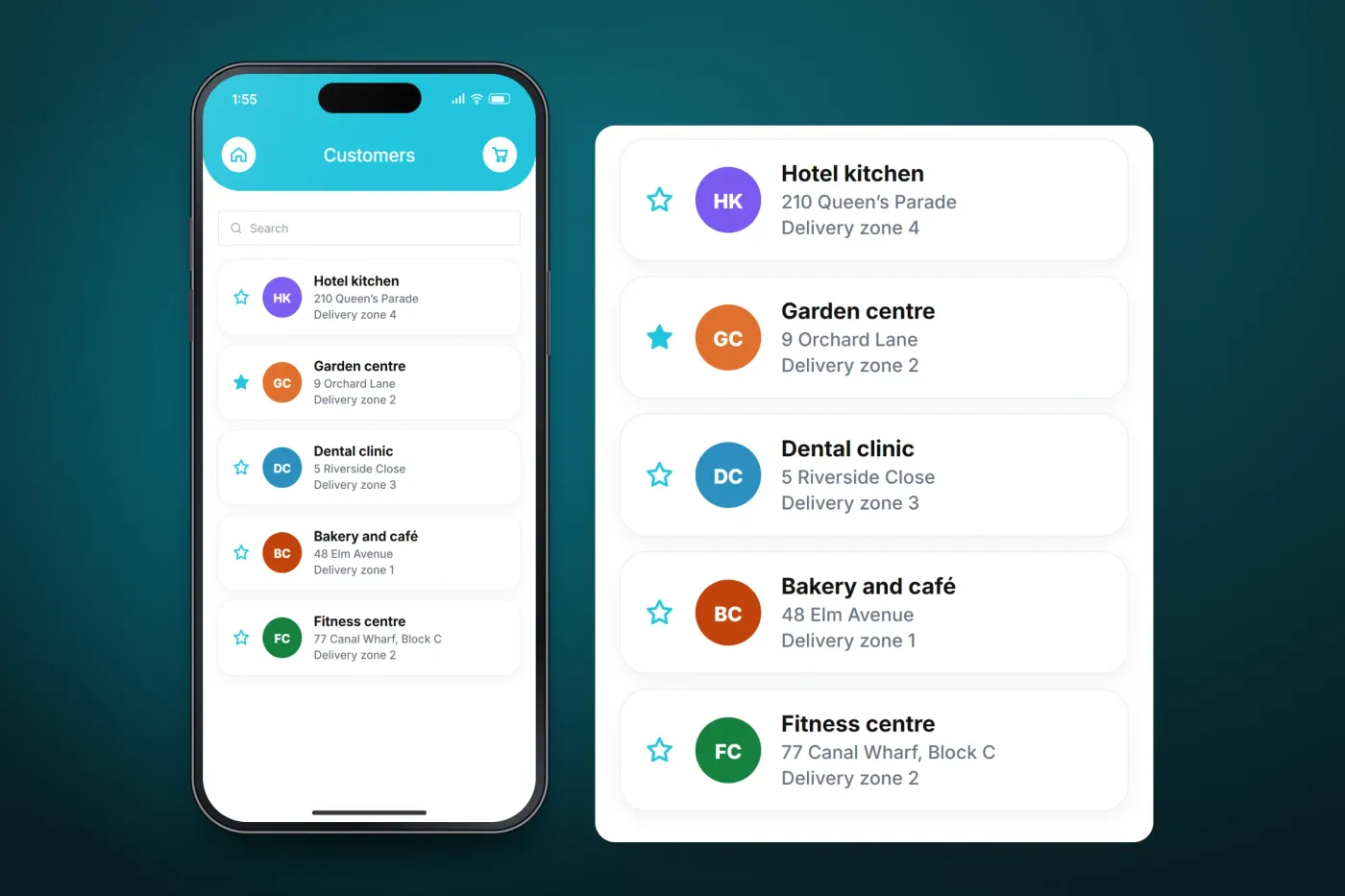
A searchable customer list with favourites, and an order screen with separate tabs for new and accepted orders, a marker for new activity and a history view.
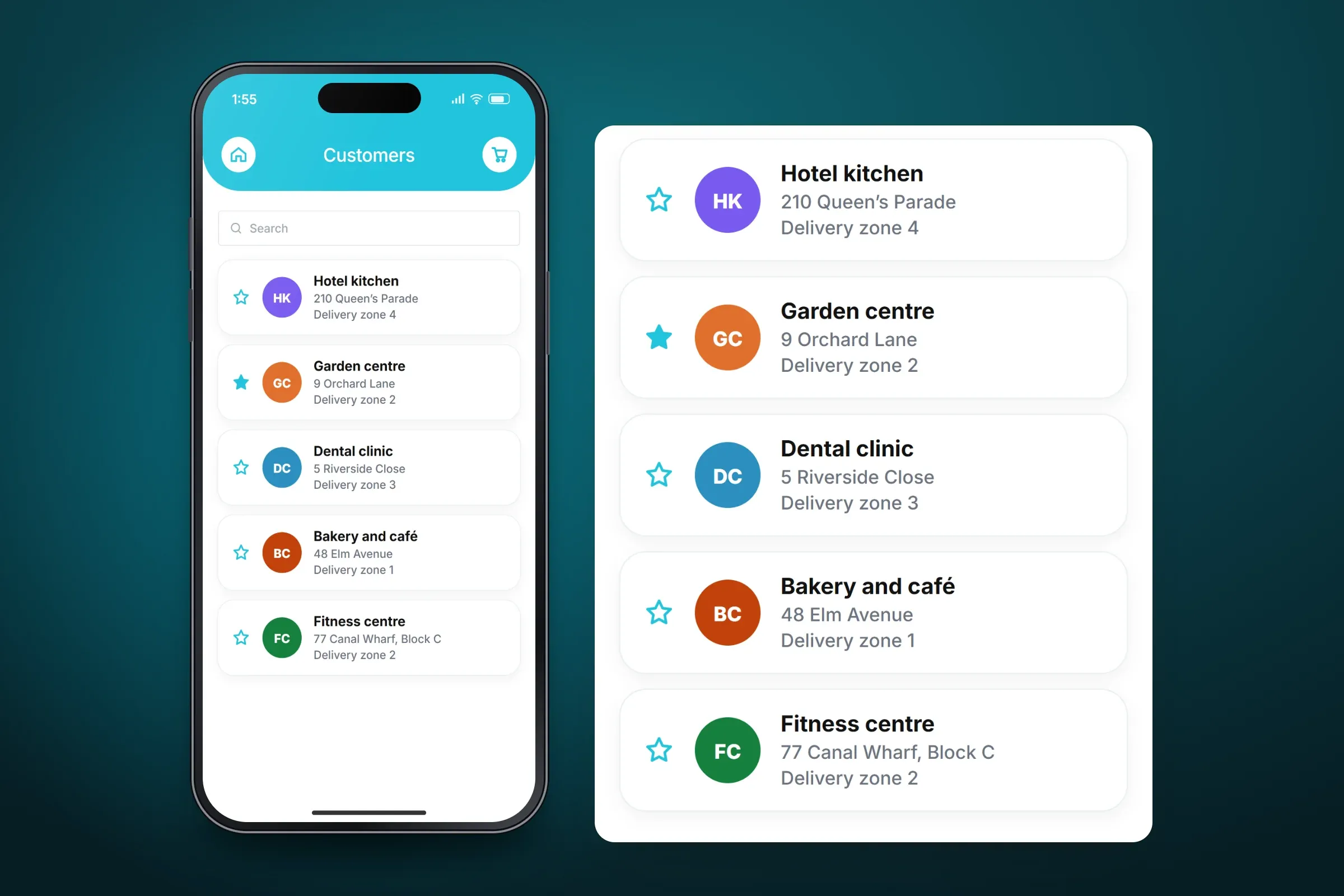
The customer list, enlarged beside the screen. Close-ups on phones: tap any image for the full screen. Company cars and SOS
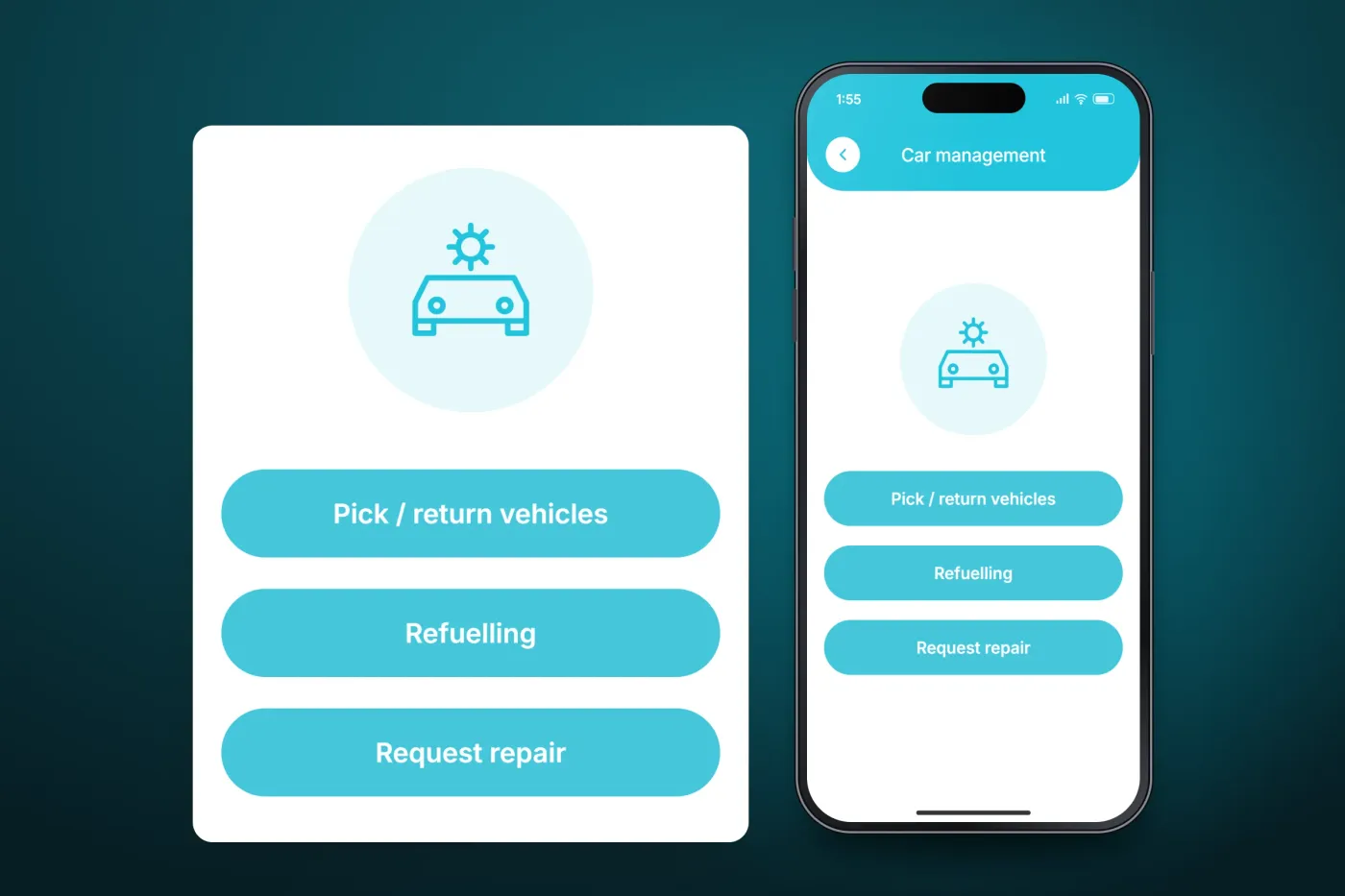
Car management covers picking up and returning vehicles, refuelling and repair requests. The SOS section gives quick access to reporting close calls and accidents.
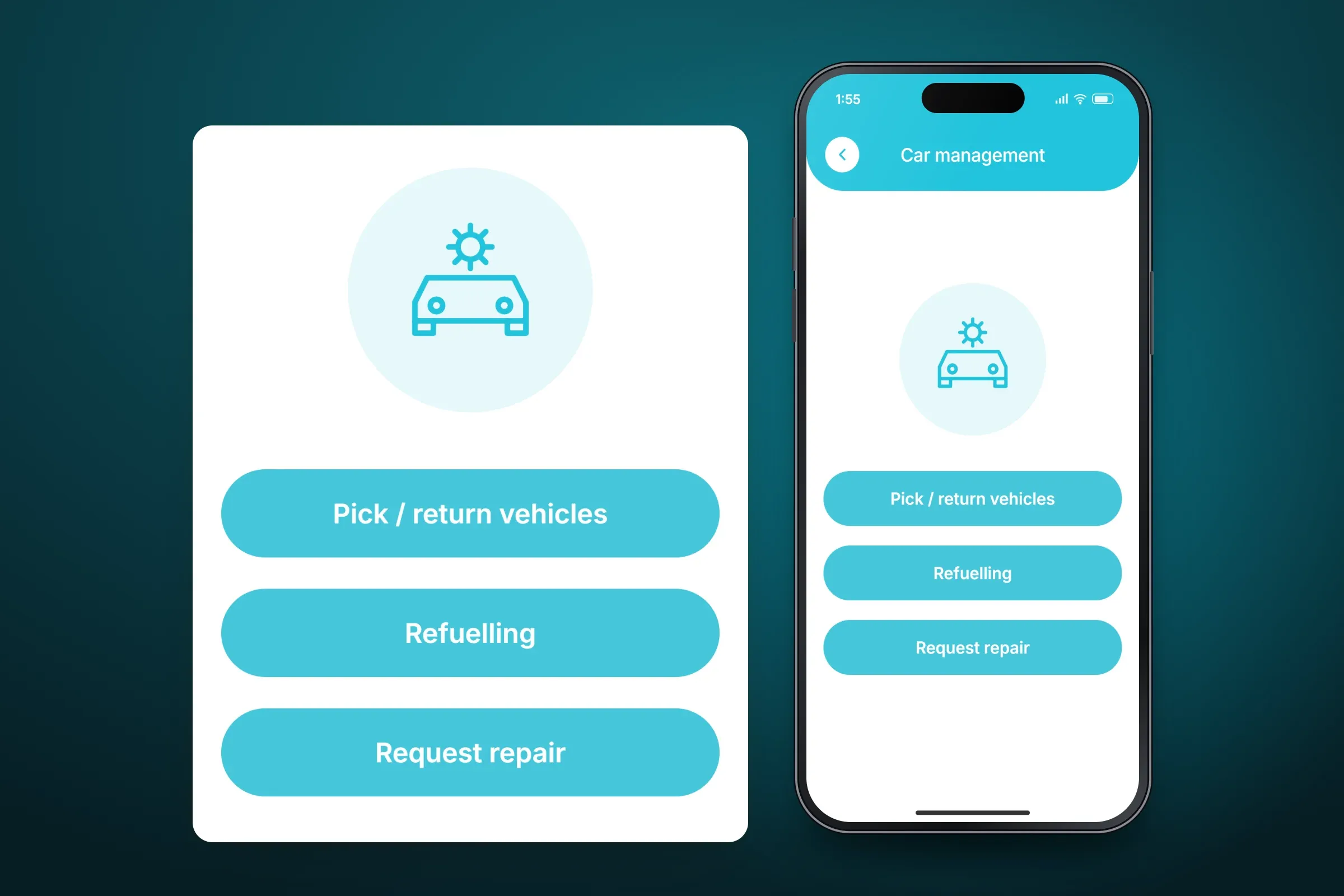
Car management: pick-up, return, refuelling and repair requests. Close-ups on phones: tap any image for the full screen. Account and profile
Each user manages their own profile and password, and reaches contact details, the privacy policy and the terms from the account screen, where they can also delete the account or log out.
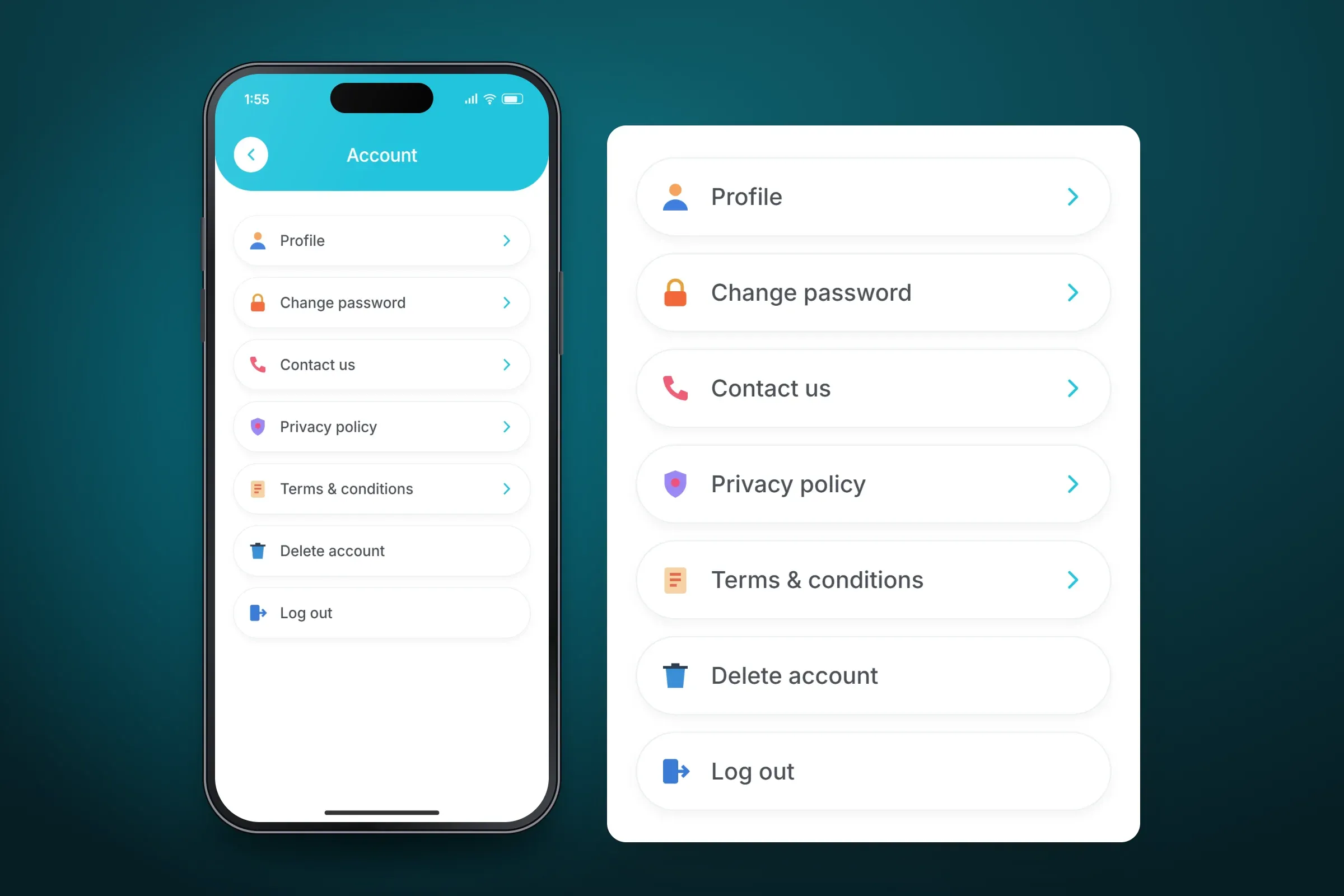
The account menu. Close-ups on phones: tap any image for the full screen.
About these images: the screens are recreated from the delivered app for this case study, with neutral naming and example data in place of the client's brand, customers and staff. They follow the app's real screens and functions, but they are not screenshots of it.
Related services