Case study · Client name withheld
Vehicle Parts Inventory App
An Android app for vehicle dismantlers to record vehicles and parts and scan them into locations
Vehicle dismantlers take a car apart and need to know which parts came from it and where each one is stored. Our team developed the Android app they use for this: add a vehicle, add its parts and scan them into shelf locations.
- Client
- Confidential client
- Platforms
- Android
- Our scope
- Android app · Barcode scanning · Working with other systems
The product
What it does, and for whom
The app is built around adding vehicles and parts and scanning locations, and it reads barcodes through the camera, a 2D laser or a built-in scanner. It works alongside the client's Windows system.
Scope: The back end and the Windows system are the client's, and the scanning hardware was not our work. Our work was the Android app.
Our contribution
What our team built
Android app
The app in Java with an MVVM structure, covering vehicles, parts and locations.
Barcode scanning
Reading barcodes by camera, 2D laser or built-in scanner.
Working with other systems
The app works with the client's back end and alongside their Windows system. Deep linking into the app is also part of the build.
Technologies: Java · MVVM
User flow
From vehicle to shelf
Four screens in the order the work happens.
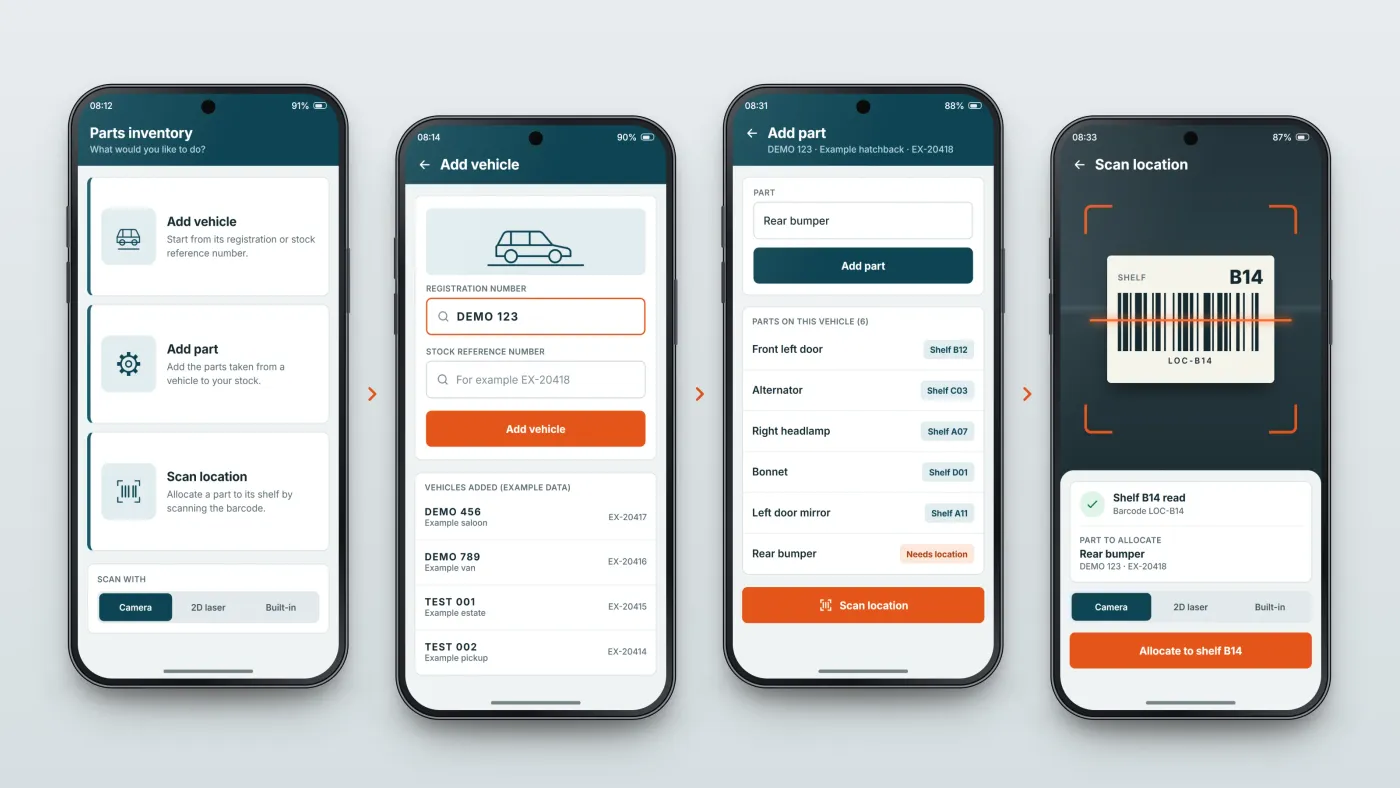
Pick the job
The home screen leads to adding a vehicle, adding a part or scanning a location.
Add the vehicle
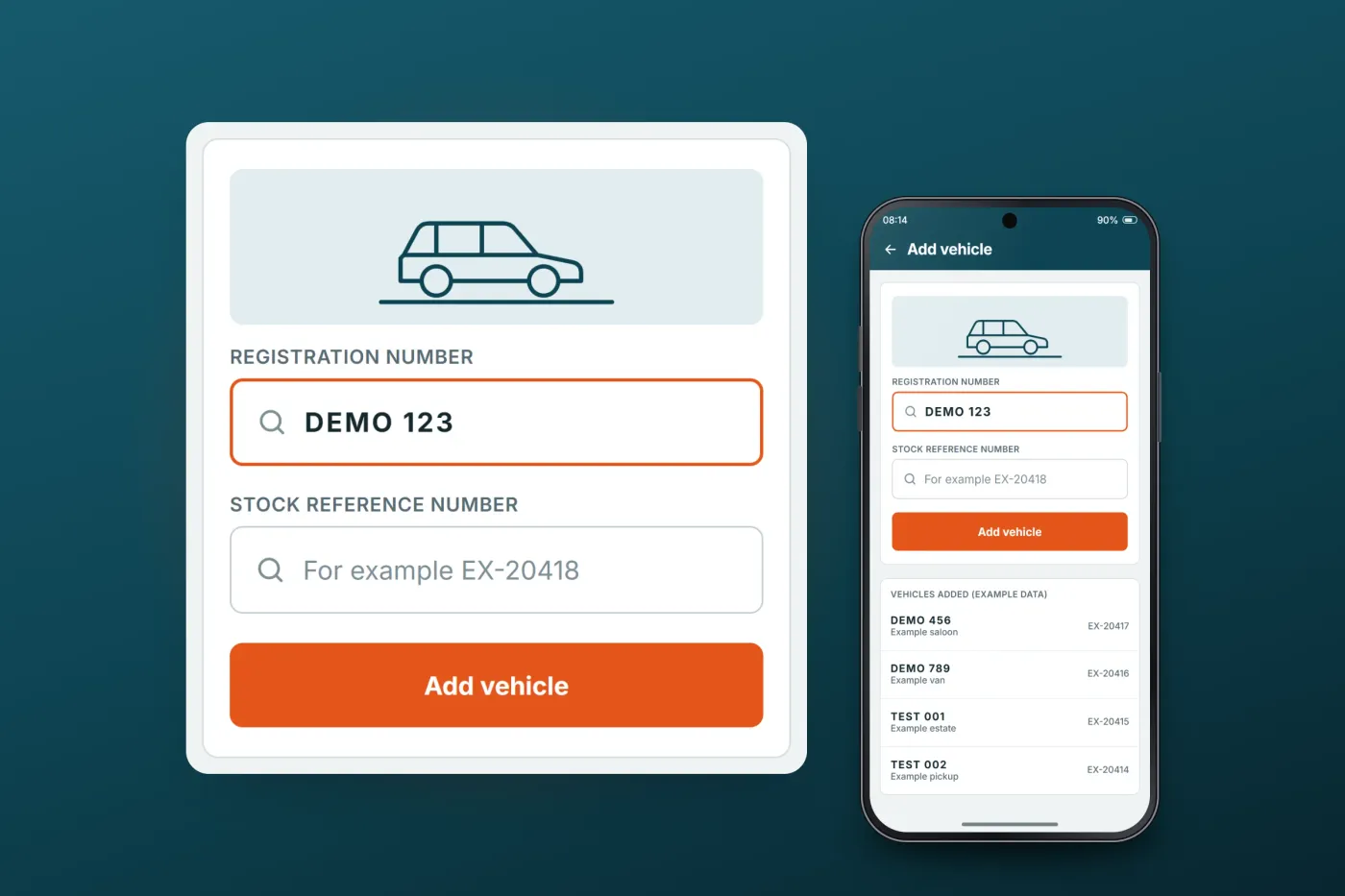
Enter its registration or stock reference number.
Add its parts
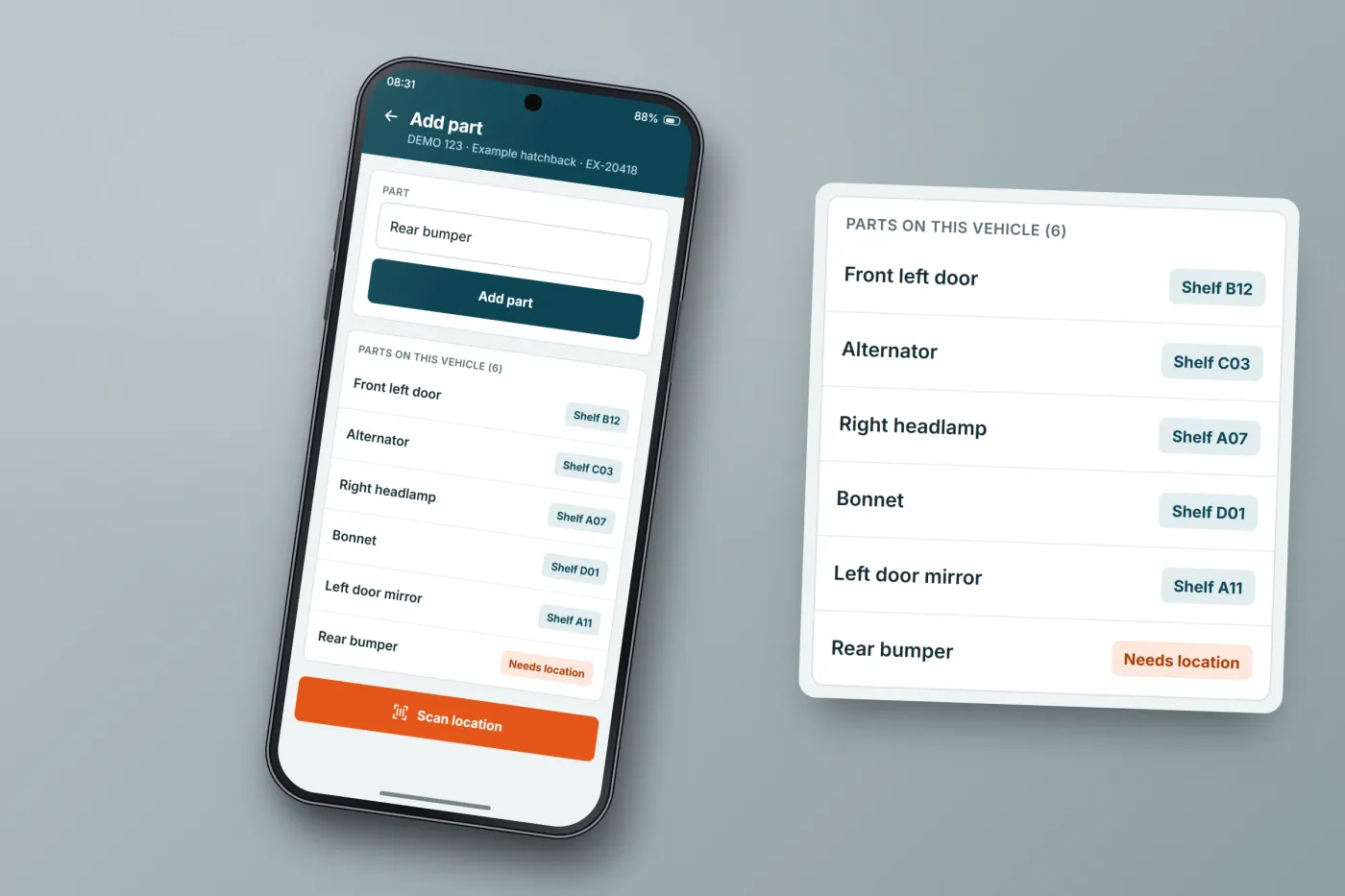
The parts taken from the vehicle go into stock, ready for a location.
Scan it to a shelf
Scan the location barcode to allocate the part to that shelf.
The product in use
Inside the app
Add a vehicle
A vehicle goes in by its registration number or stock reference number.
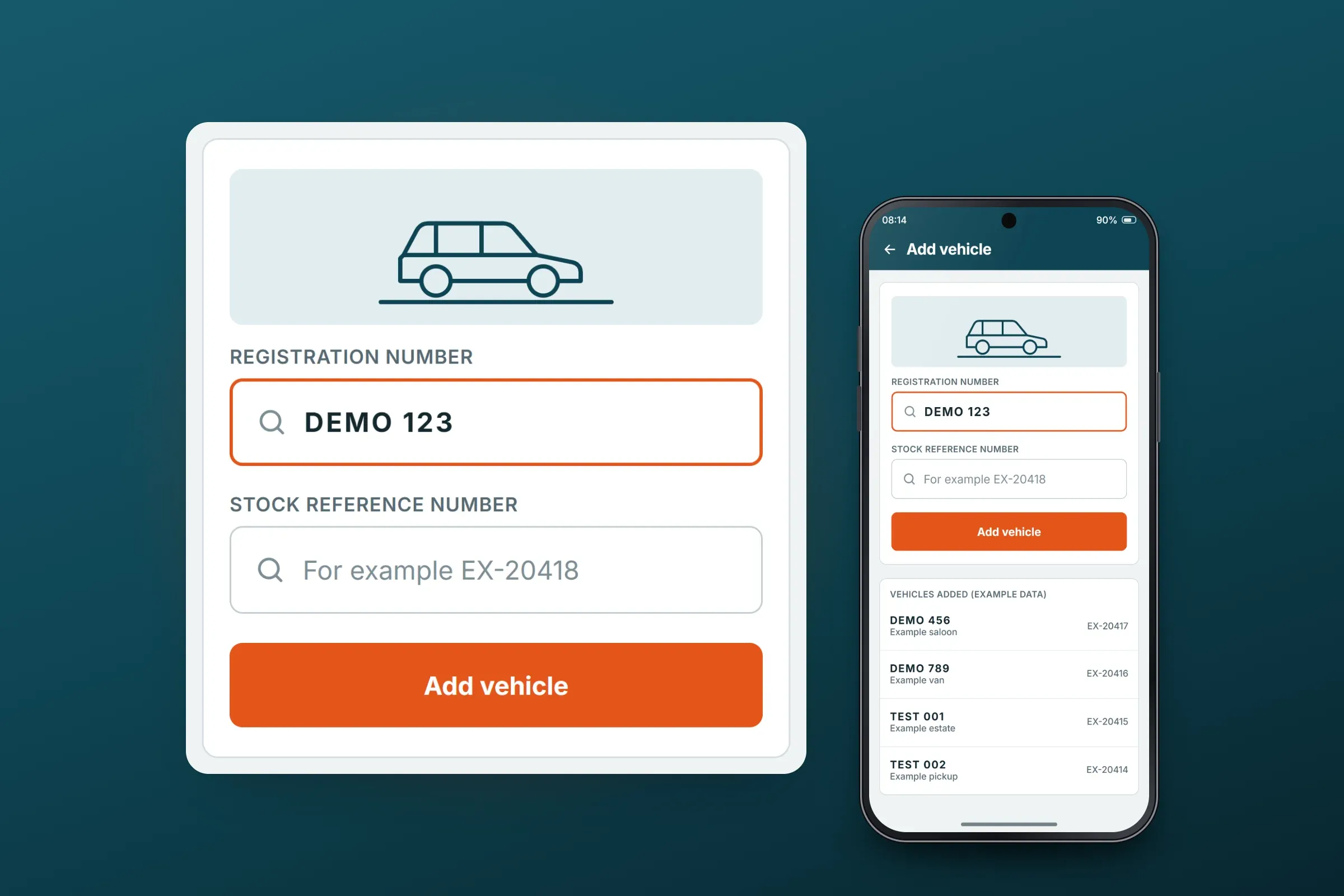
Registration or stock reference. Close-ups on phones: tap any image for the full screen. Add parts
Staff add the parts taken from a vehicle to stock, ready to be allocated to a location.
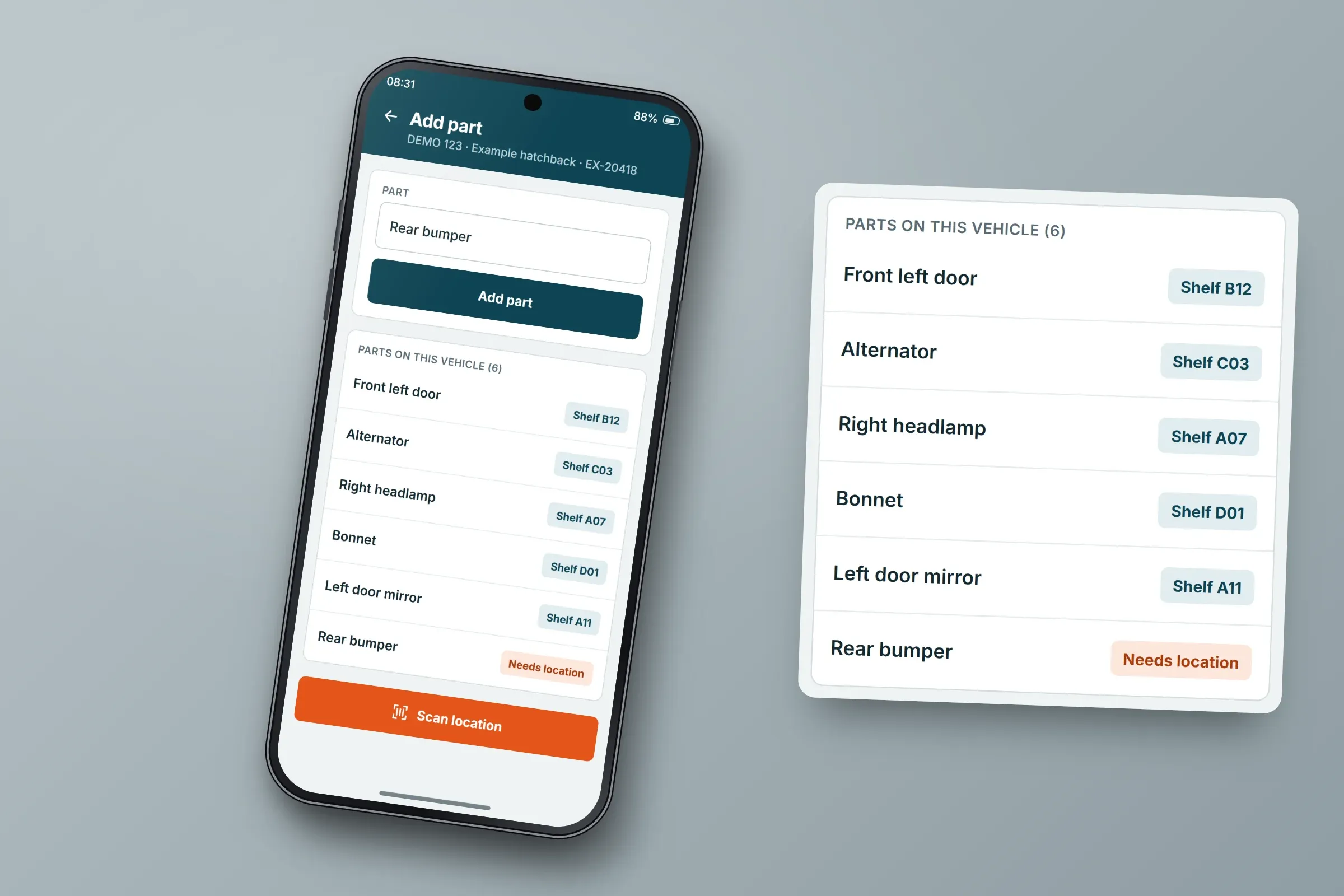
Parts on one vehicle. Close-ups on phones: tap any image for the full screen. Scan locations
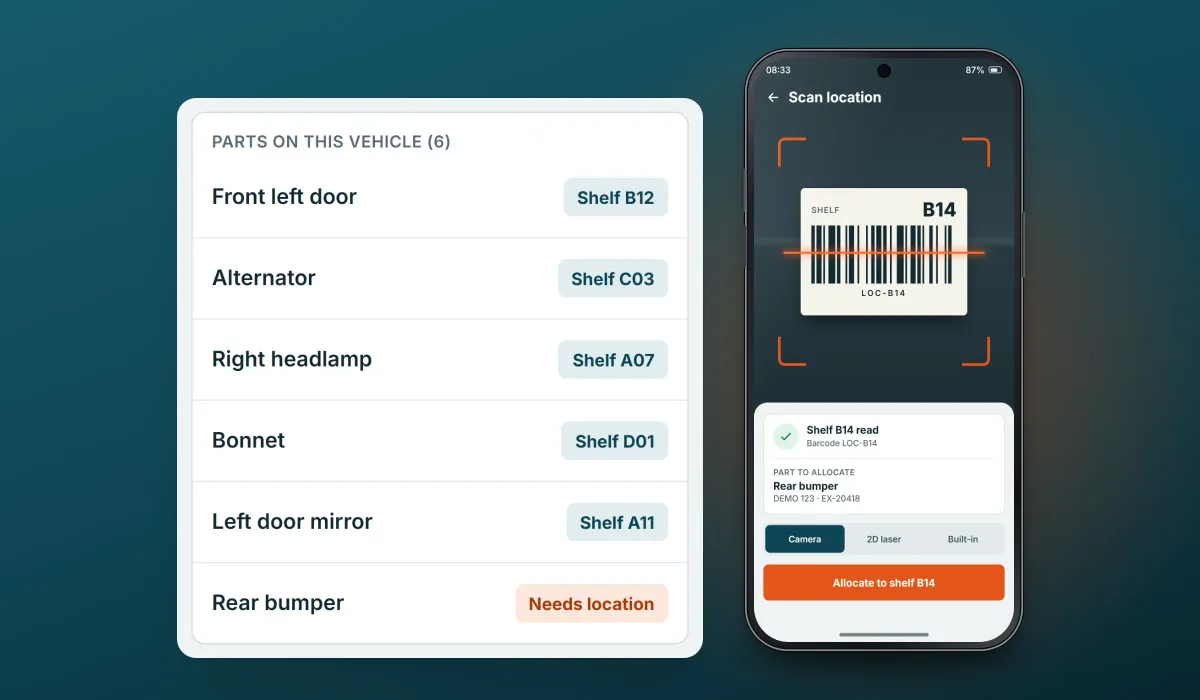
Scanning allocates a part to its shelf location. Barcodes can be read by camera, 2D laser or built-in scanner.
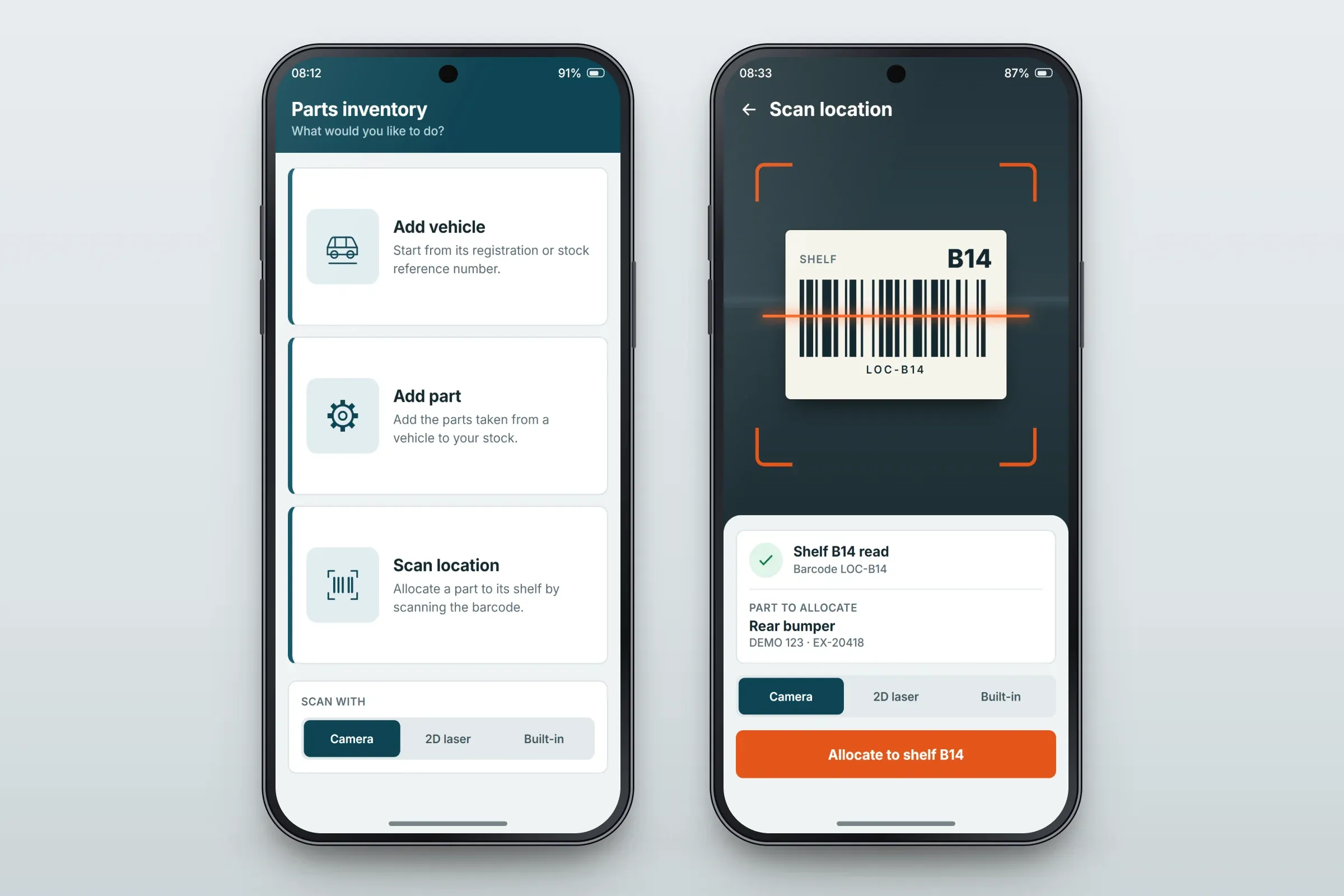
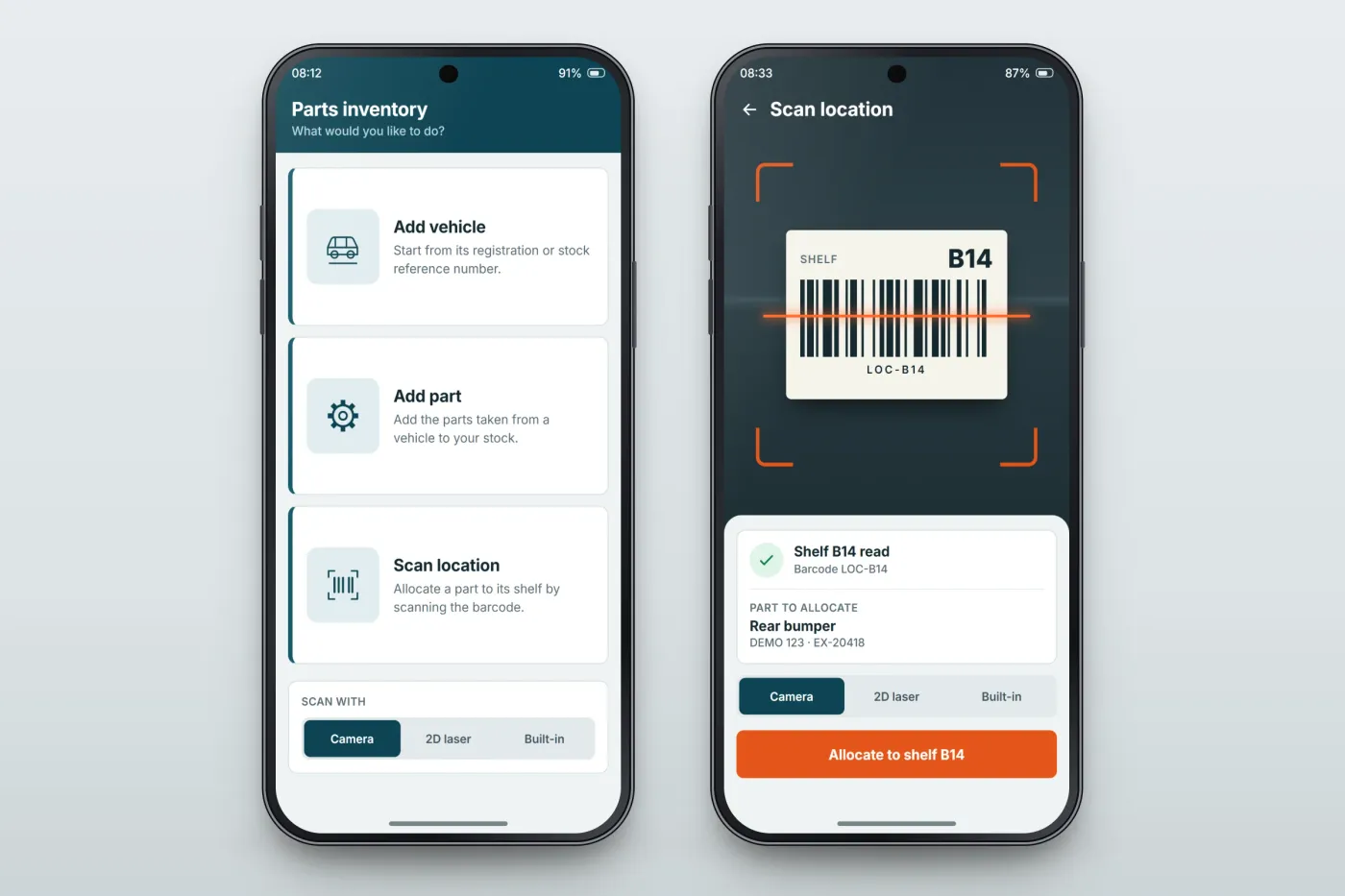
Home screen and shelf scan. Close-ups on phones: tap any image for the full screen.
About these images: the screens are recreated for this case study, with neutral naming in place of the client's brand. Registrations, stock references, vehicles, parts and shelves are made-up examples. The images follow the app's functions, but the layouts are illustrative and they are not screenshots of it.
Related services