Case study · Client name withheld
EV Charging Control App
A companion app for a smart charging box that takes the place of a standard outlet
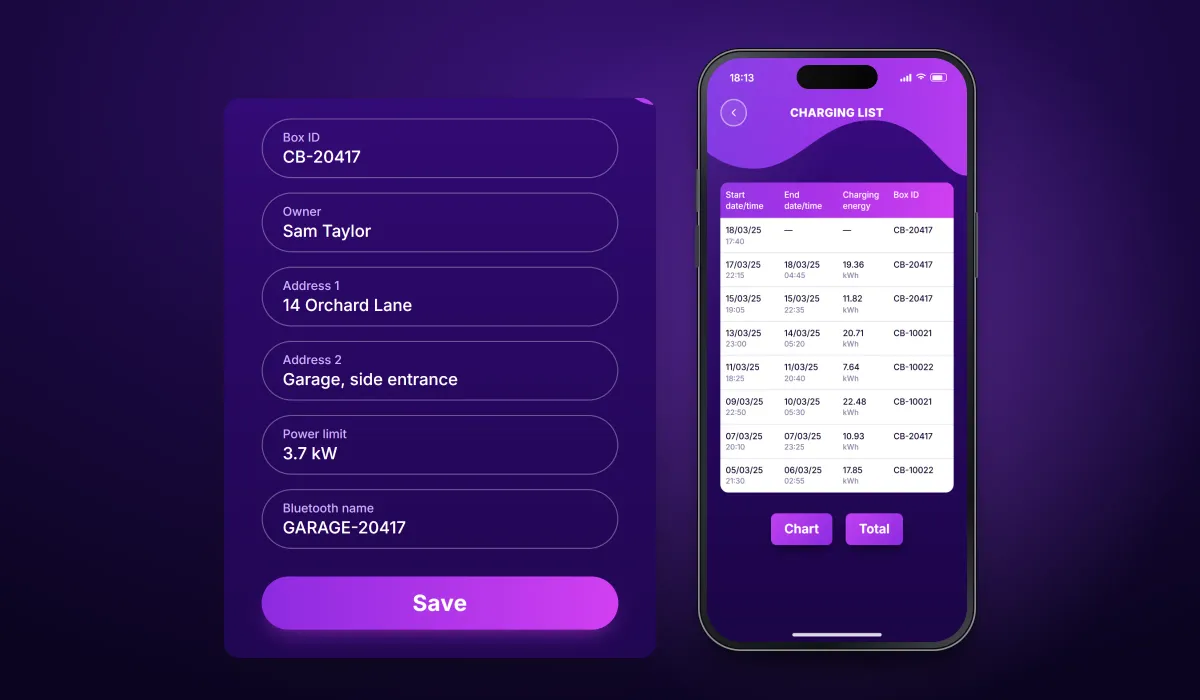
The client makes a charging box for electric vehicles that is installed in place of a standard electrical outlet, giving the owner control over charging time, duration and energy use. Our team developed the mobile app that goes with it: owners register their boxes, set each box's details and power limit, and see every charging session with the energy it used.
- Client
- EV charging hardware company
- Platforms
- iOS
- Our scope
- Box registration · Charging records · Account
The product
What it does, and for whom
A charging box is only as useful as the information around it. The app keeps a list of the owner's boxes, adds a new one by scanning its code, and records each charging session with its start and end time, the energy charged and the box it ran on. Charging data is synced with the server, and the owner can let the sync carry on in the background.
Scope The charging box, its electronics and firmware are the client's. Our work was the mobile app. To keep the client confidential, the screens on this page are recreated from the delivered app with neutral naming and example data.
Our contribution
What our team built
Box registration
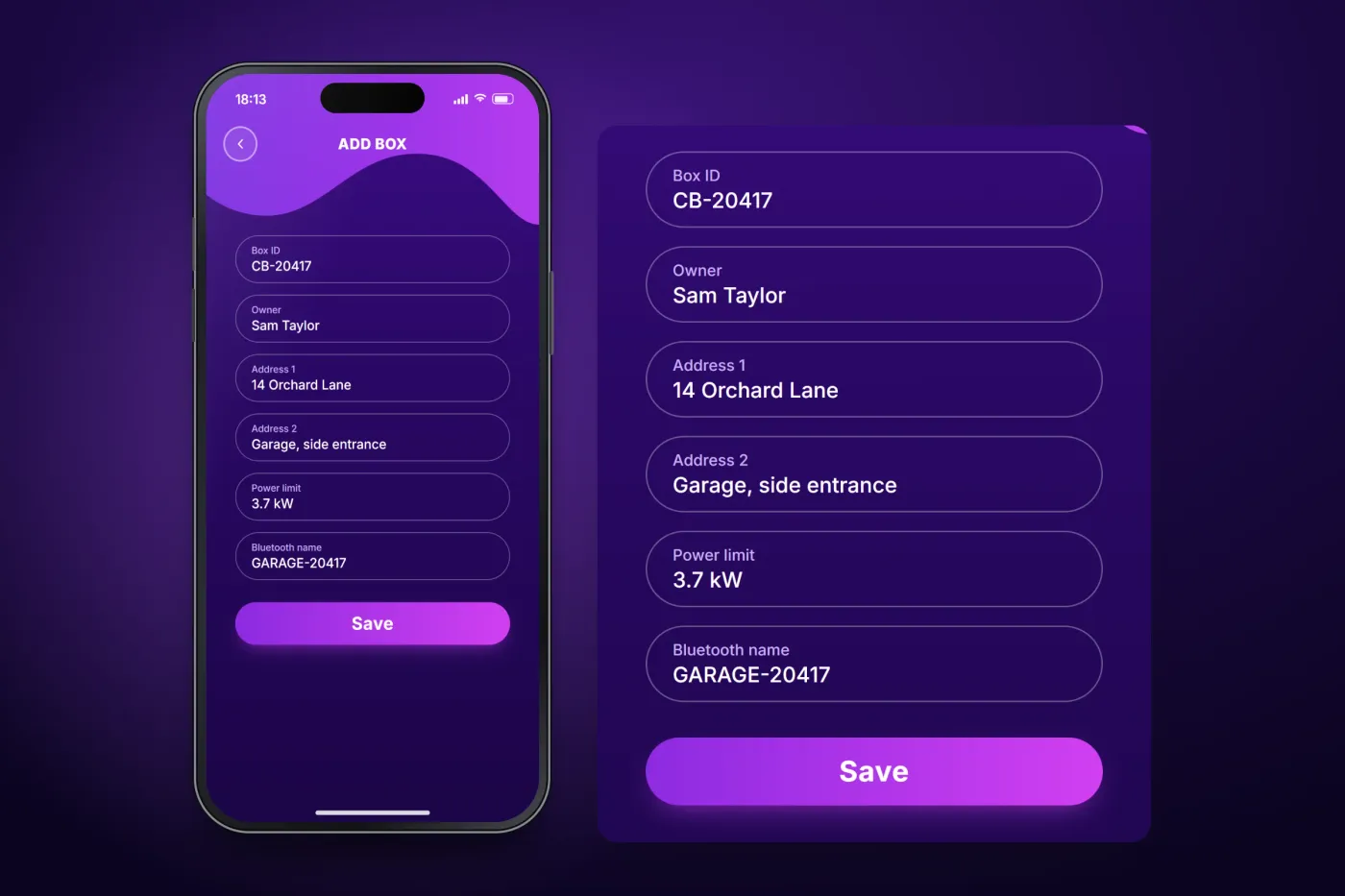
Adding a box by scanning its code, and the details form with address, power limit and Bluetooth name.
Charging records
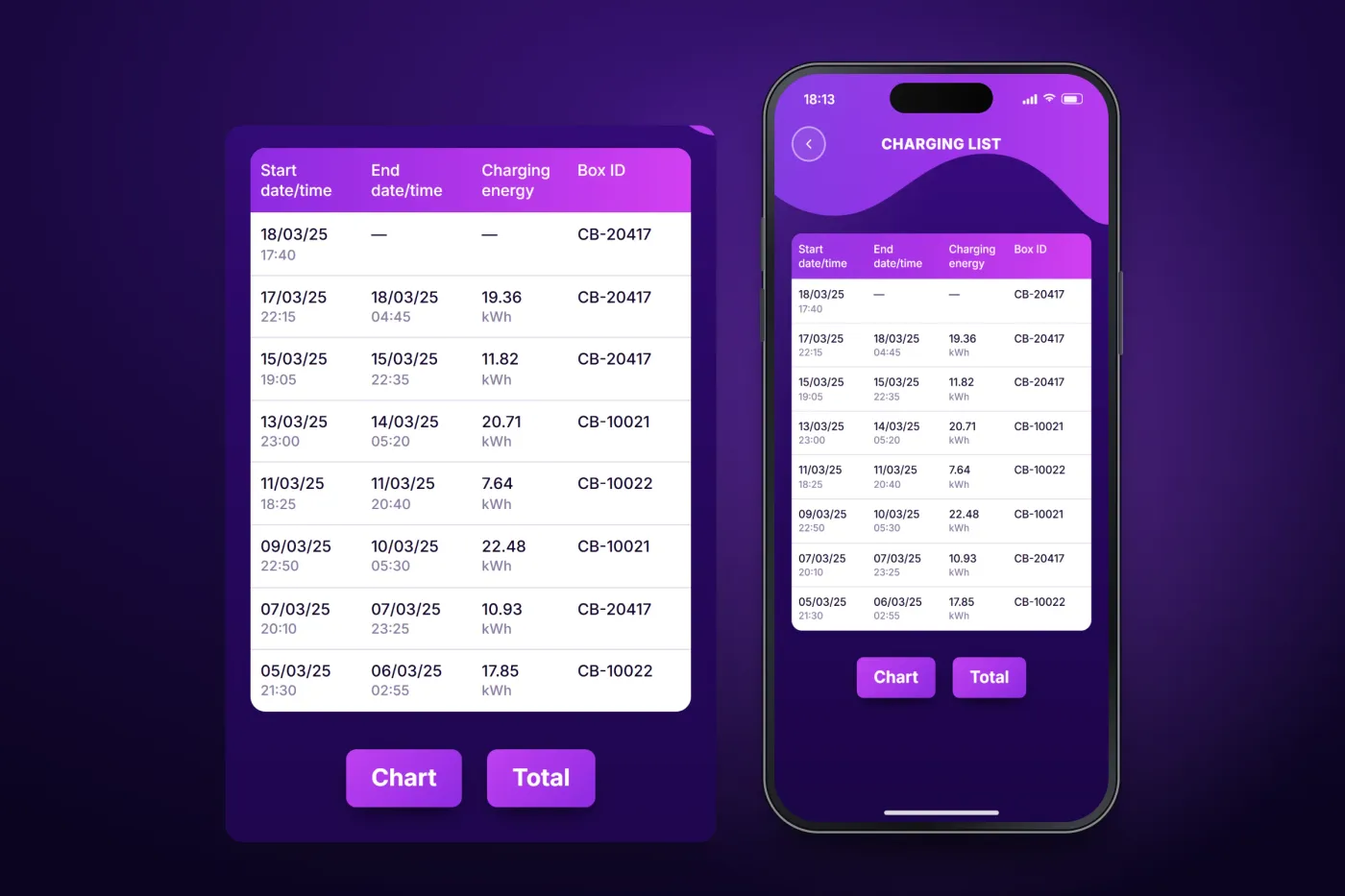
The charging list with each session's times, energy and box, and the sync of charging data with the server, which can continue in the background.
Account
The box list on the home screen and the account menu with profile, charging data, invoice generation, terms and log out.
User flow
From a new box to its charging history
How an owner registers a charging box and then follows every session it runs.
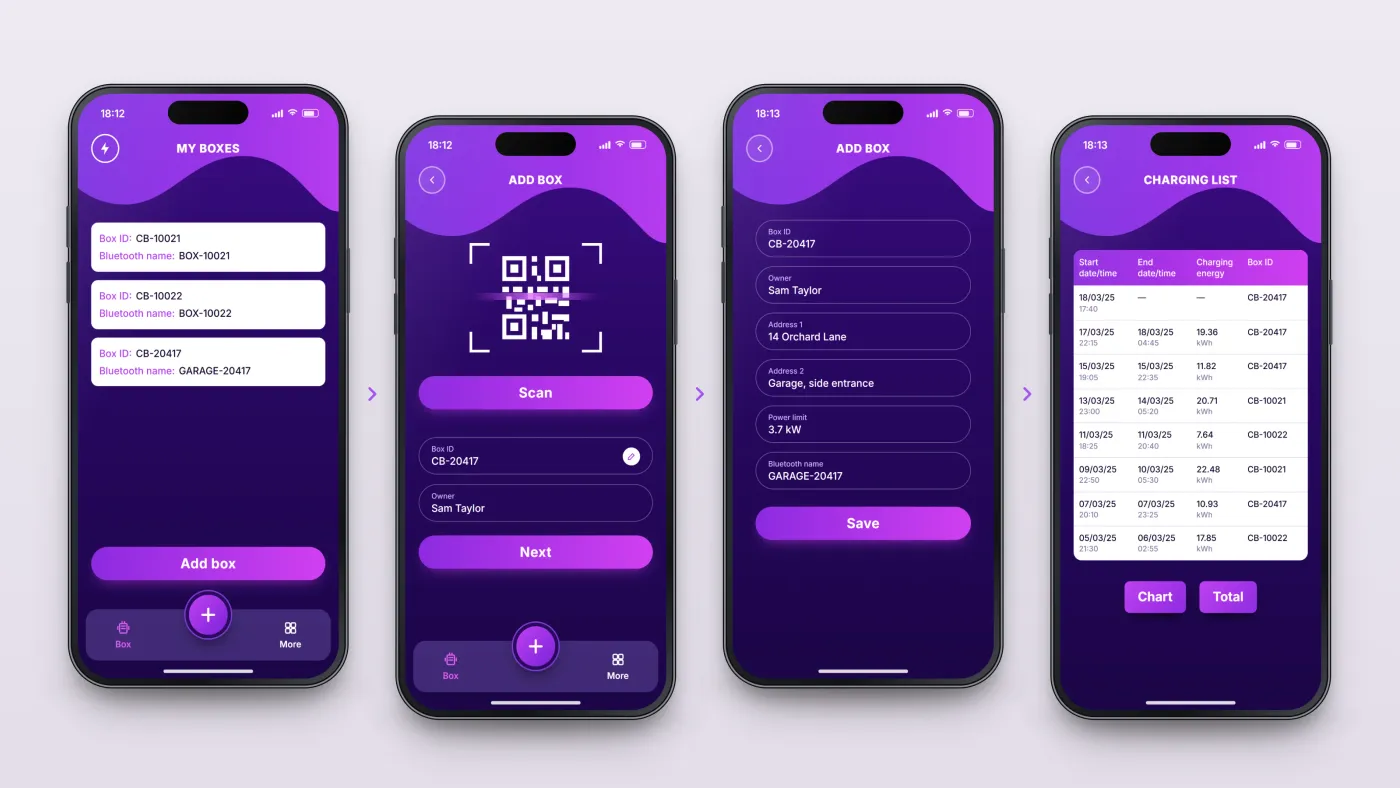
See your boxes
The home screen lists the owner's boxes by ID and Bluetooth name.
Scan a new box
A new box is added by scanning its code.
Complete its details
Box ID, owner, address, power limit and the name the box uses over Bluetooth.
Follow the sessions
Each session's start and end, energy in kWh and box, with Chart and Total buttons.
The product in use
Inside the app
Adding a charging box
A new box is added by scanning its code and entering its box ID and owner. The owner then completes the box's details: address, power limit and the name the box uses over Bluetooth.
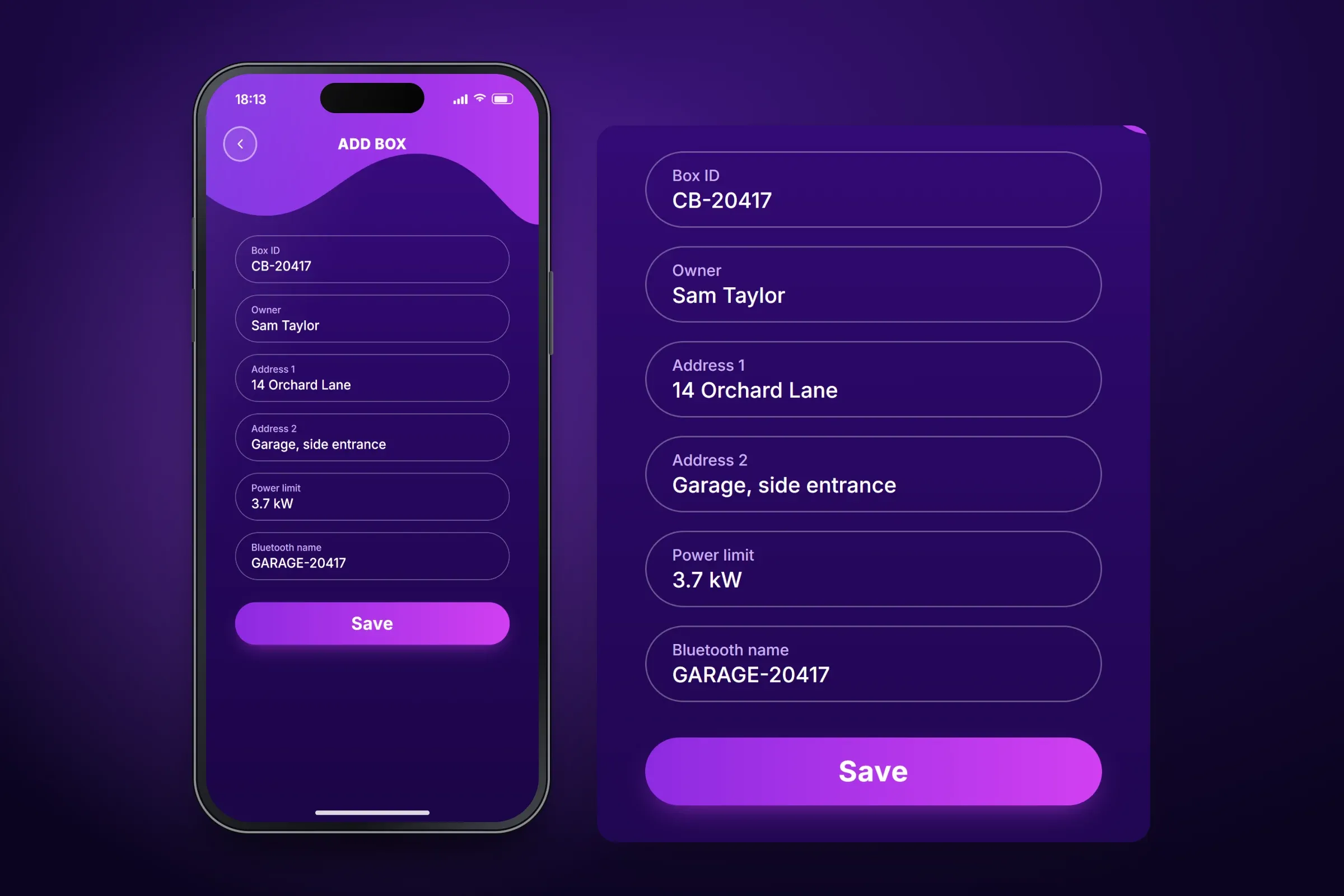
Entering a new box's details and power limit. Close-ups on phones: tap any image for the full screen. Every charging session on record
The charging list shows each session with its start and end date and time, the energy charged in kWh and the box it ran on, with Chart and Total buttons below. Charging data is synced with the server, and the sync can continue in the background.
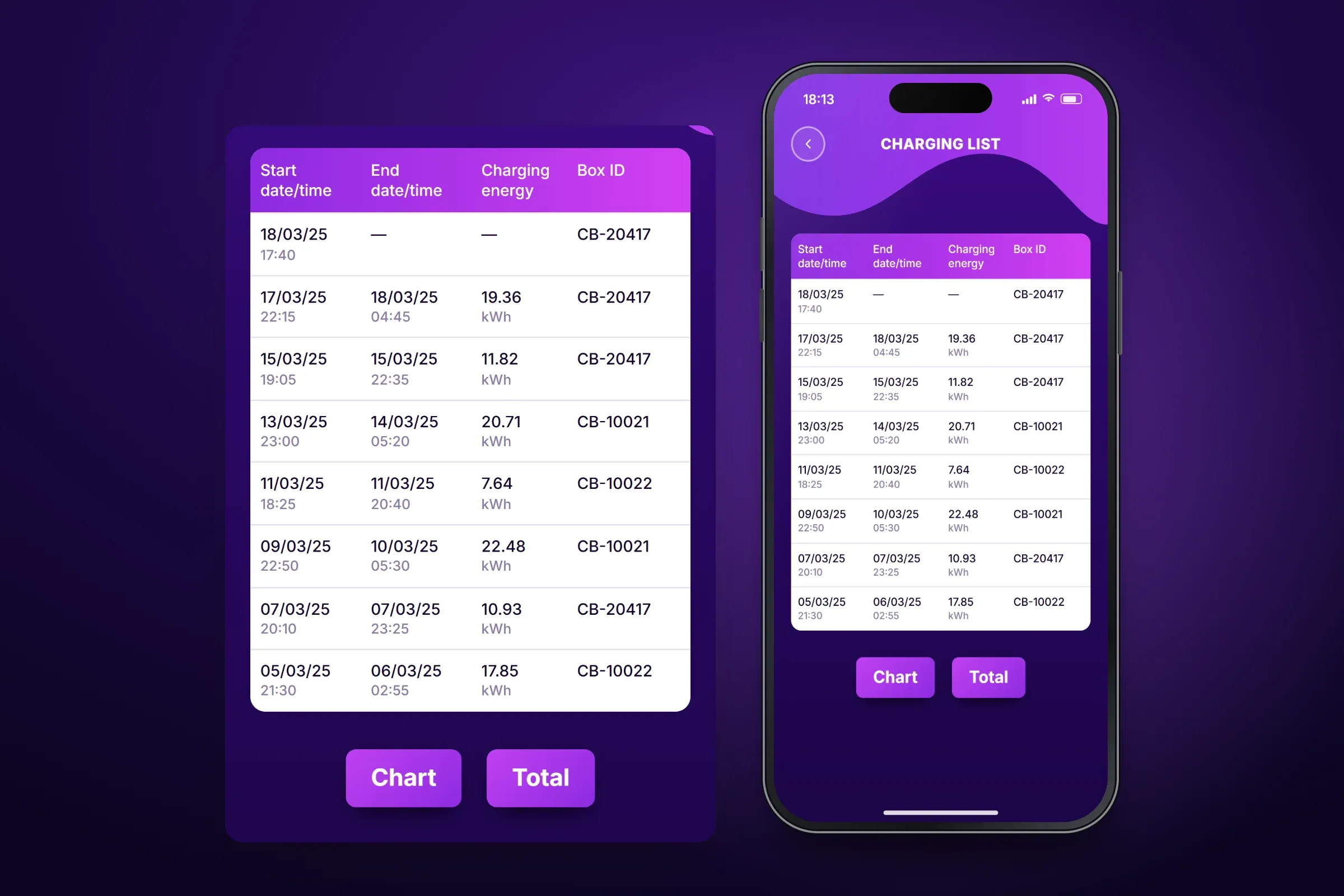
The charging list. Close-ups on phones: tap any image for the full screen. Boxes and account
The home screen lists the owner's boxes by ID and Bluetooth name, with a button to add another. The account menu holds the user profile, charging data, invoice generation, about, terms and log out.
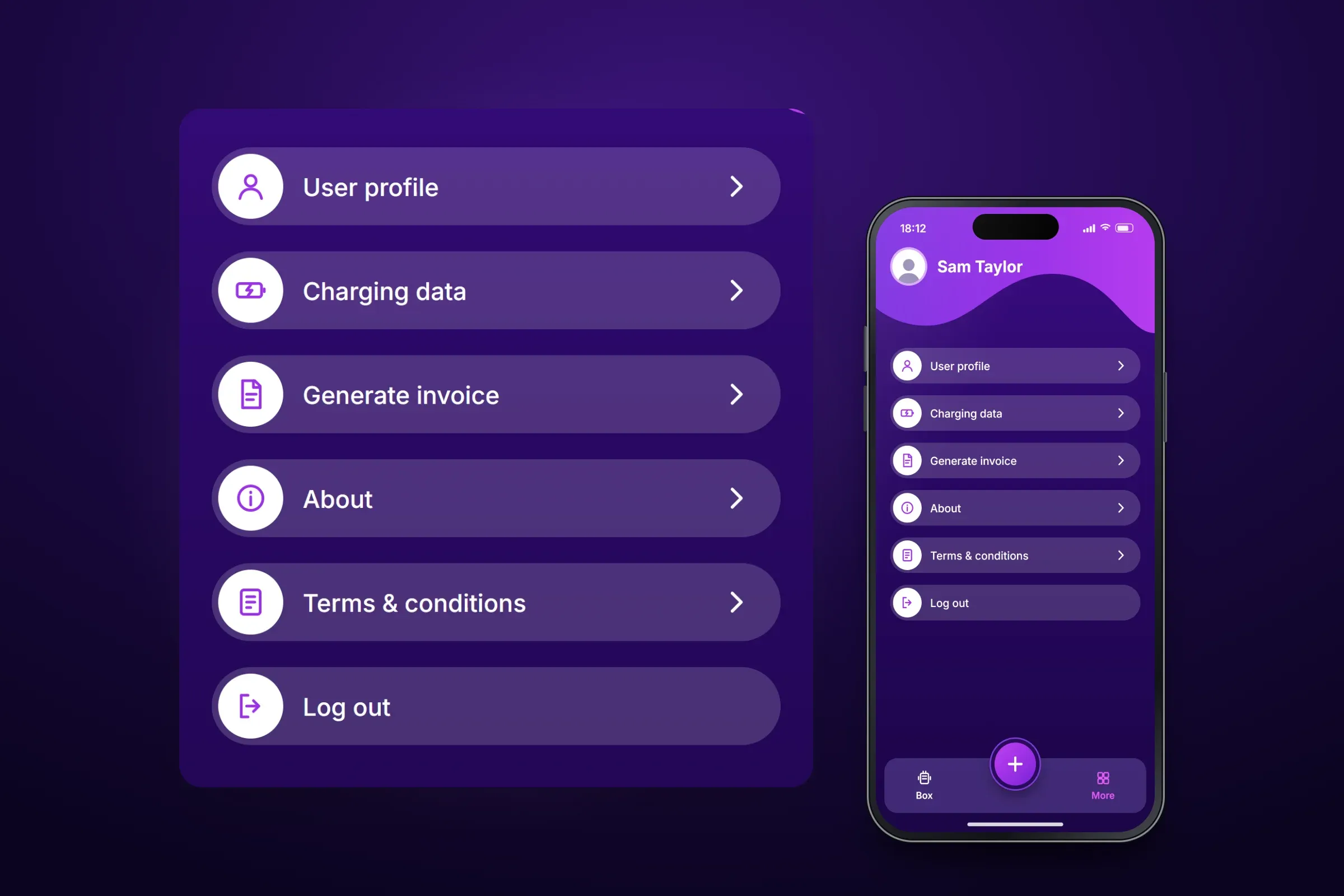
The owner's boxes. Close-ups on phones: tap any image for the full screen.
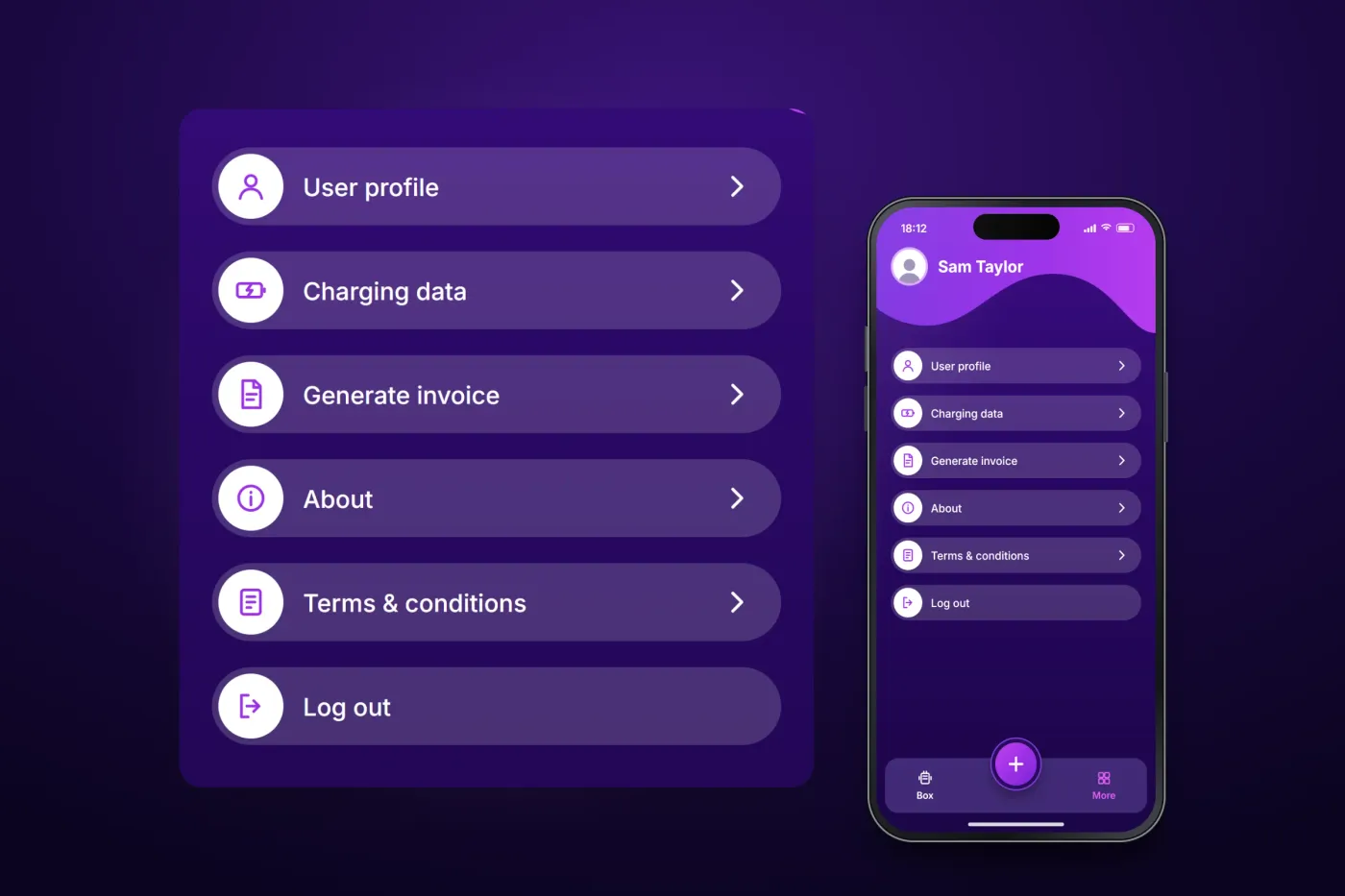
About these images: the screens are recreated from the delivered app for this case study, with neutral naming and example data in place of the client's brand, boxes and customers. They follow the app's real screens and functions, but they are not screenshots of it.
Related services
The services behind this project
- Mobile app development Native and cross-platform iOS and Android apps, with their back end, from first release to long-term upkeep.
- Apps for IoT and connected devices IoT app development for Bluetooth and Wi-Fi hardware — pairing, live sensor data, device control, sync and firmware updates from the app.