Case study · Client name withheld
Bluetooth Headset Companion App
A Flutter Android app that sets up a Bluetooth headset and plays internet radio through it
A companion app for a Bluetooth headset, published on Google Play for Android. Our team developed the app in Flutter: the owner picks a language, registers the headset, pairs it over Bluetooth Classic and can then listen to internet radio through it.
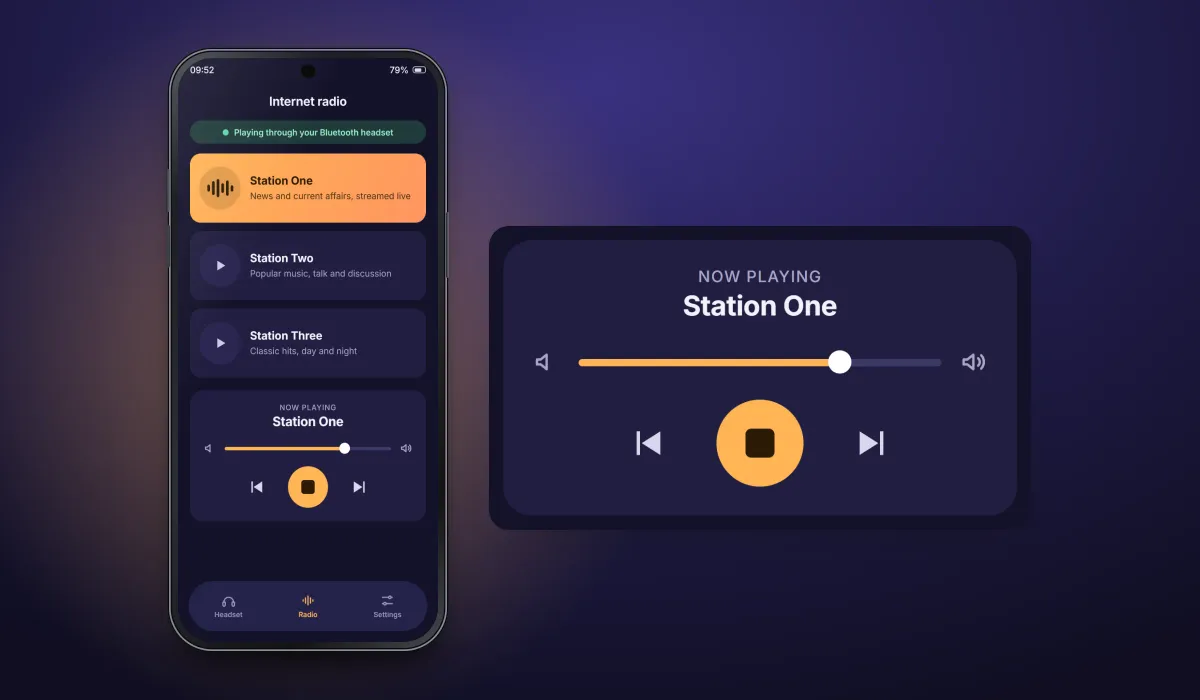
- Client
- Confidential client
- Platforms
- Android
- Our scope
- Flutter Android app · Bluetooth connection · Internet radio
The product
What it does, and for whom
The app takes a new owner from first launch to a working connection step by step, and can reconnect to the headset later. Radio stations are streamed over the internet, and the sound reaches the headset over the Bluetooth connection.
Scope: The headset hardware was not our work, and the app sends no commands to it: it connects over Bluetooth Classic, not Bluetooth Low Energy. This case study covers the Android app only, not any server side the app talks to.
Our contribution
What our team built
Flutter Android app
The app itself, built in Flutter with BLoC, including multi-language onboarding and headset registration.
Bluetooth connection
Bluetooth Classic pairing and reconnection through a native Kotlin Bluetooth plugin.
Internet radio
Internet-radio station playback through the headset, with player controls in the app.
Technologies: Flutter · BLoC · Kotlin · just_audio · FFmpeg
User flow
From new headset to radio
Four screens in the order an owner meets them.
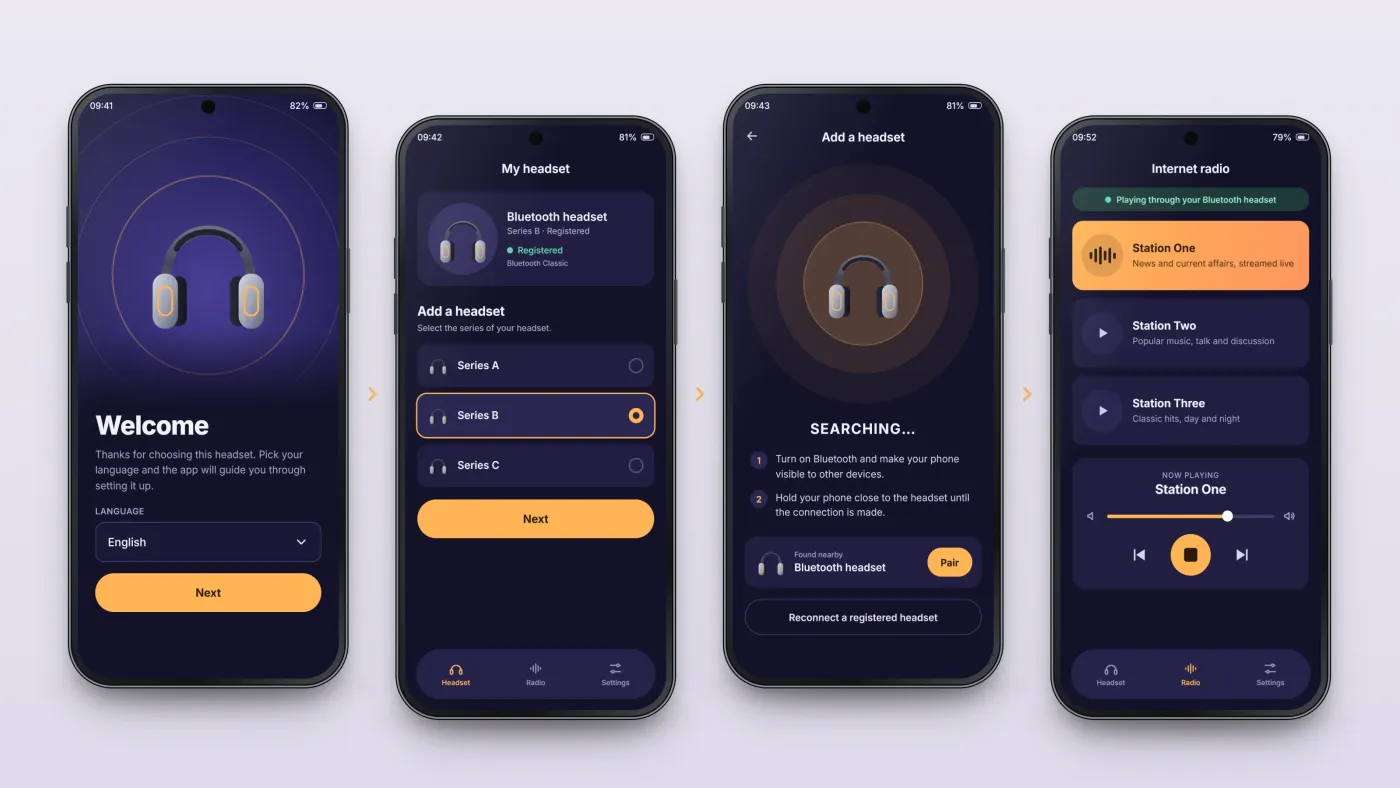
Choose a language
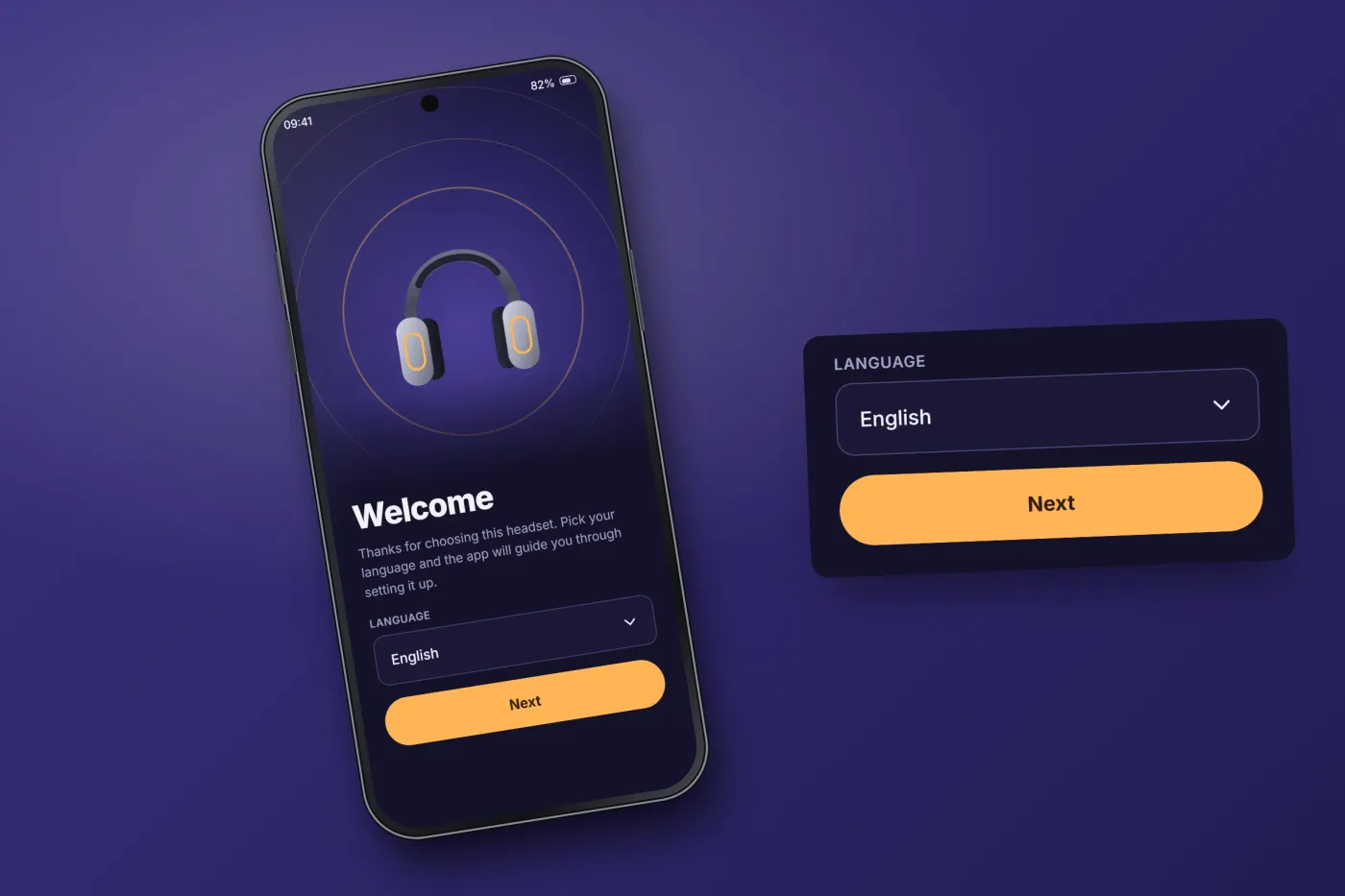
The first screen welcomes the owner and asks for a language.
Register the headset
The owner registers the headset by selecting its series.
Pair the headset
The app searches and pairs over Bluetooth Classic.
Listen to the radio
Stations stream over the internet and play through the headset.
The product in use
Inside the app
Language choice at first launch
Onboarding is available in more than one language, and choosing one is the first thing a new owner does.
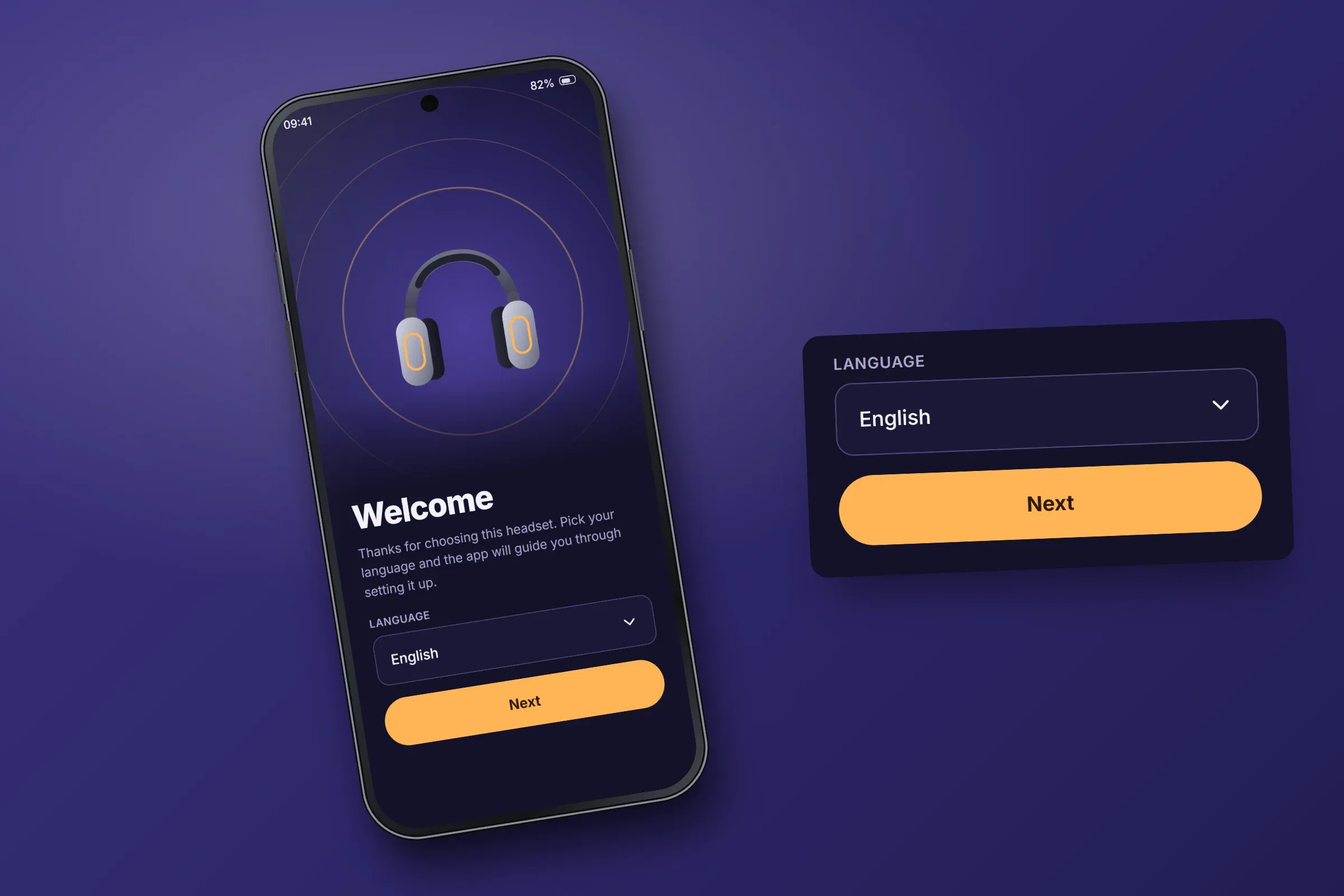
First launch. Close-ups on phones: tap any image for the full screen. Headset registration
The owner registers the headset in the app by choosing its series.
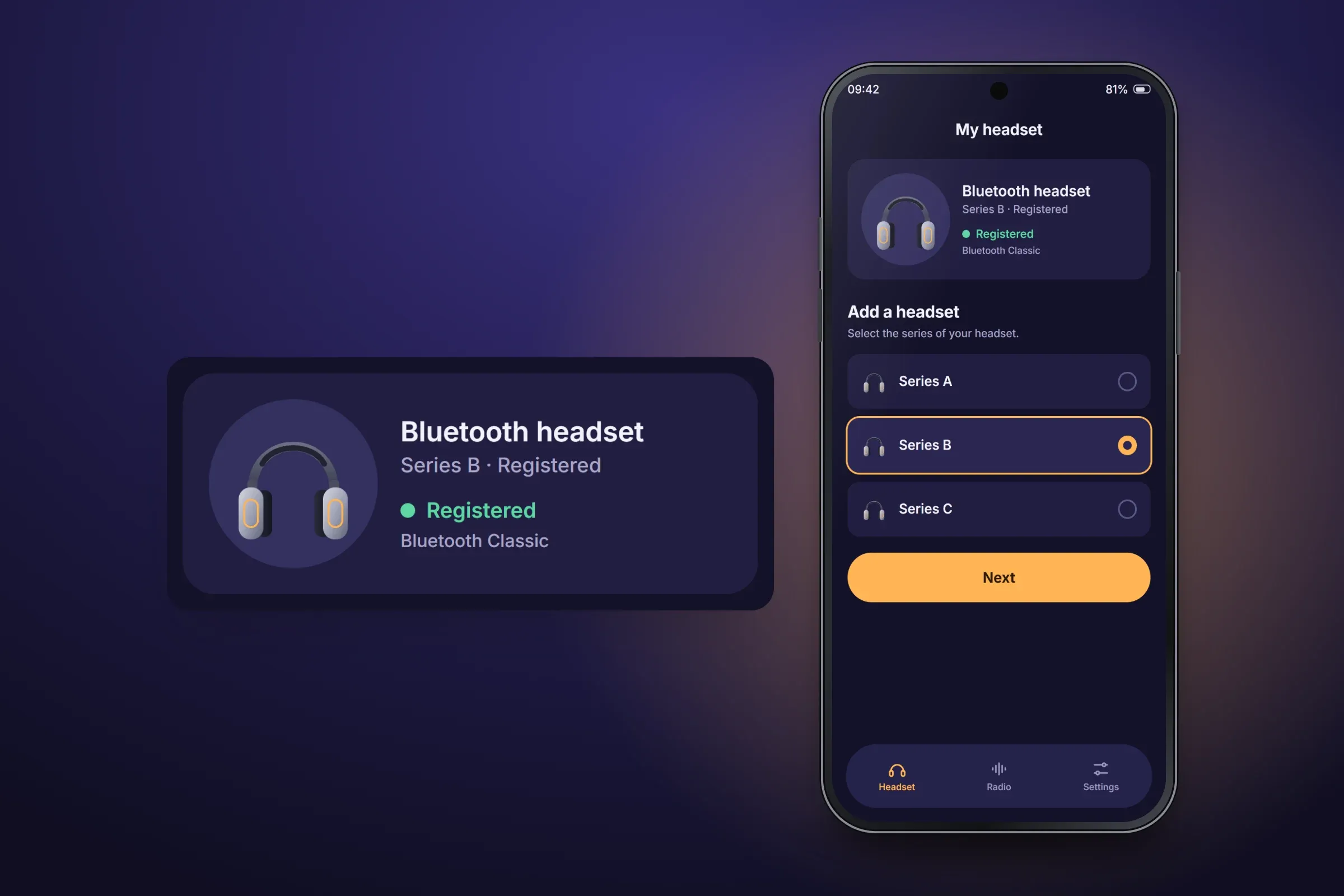
A registered headset. Close-ups on phones: tap any image for the full screen. Pairing and reconnection
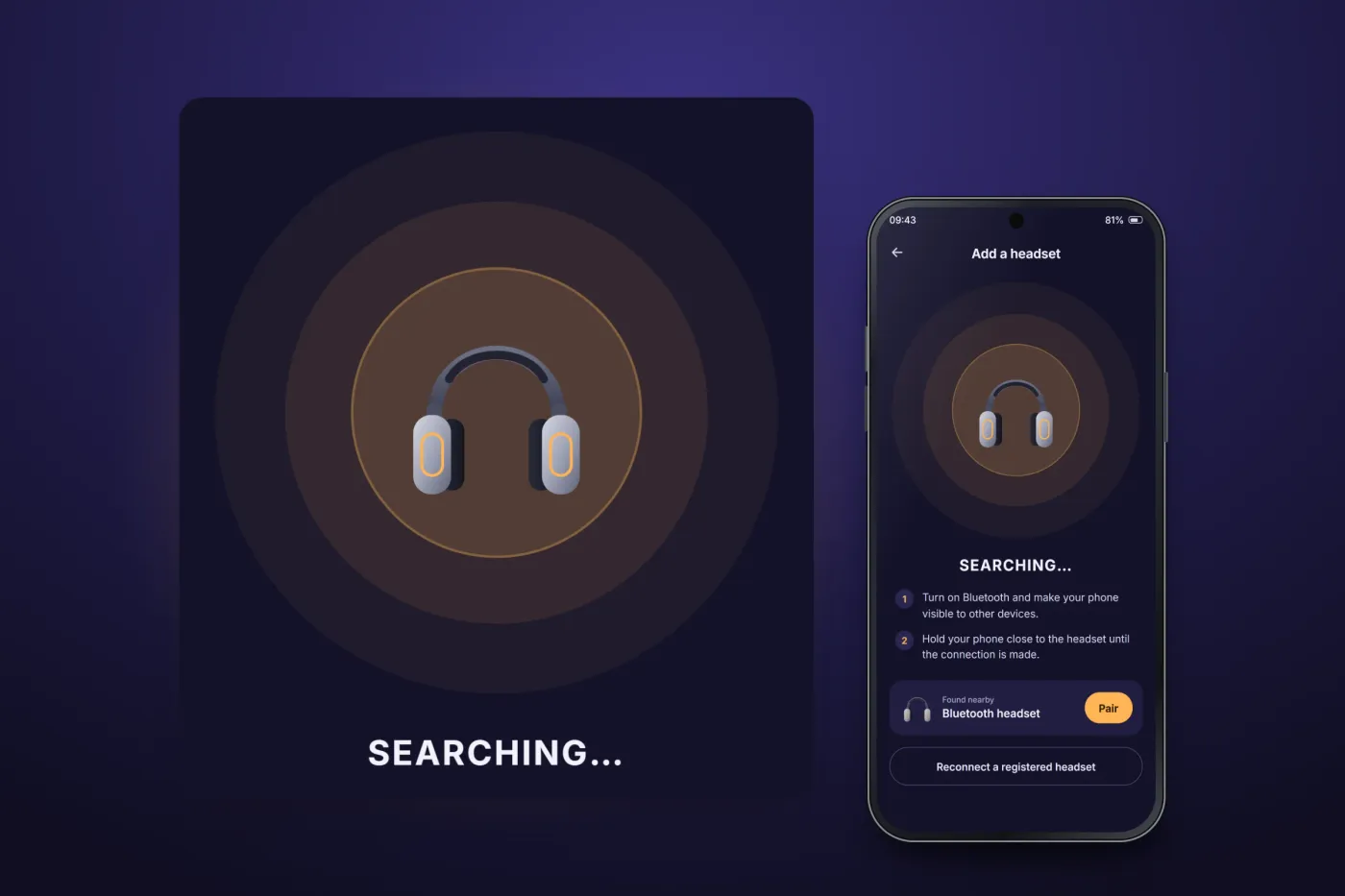
The app searches for the headset and pairs over Bluetooth Classic. A native Kotlin plugin handles the Bluetooth work for the Flutter app.
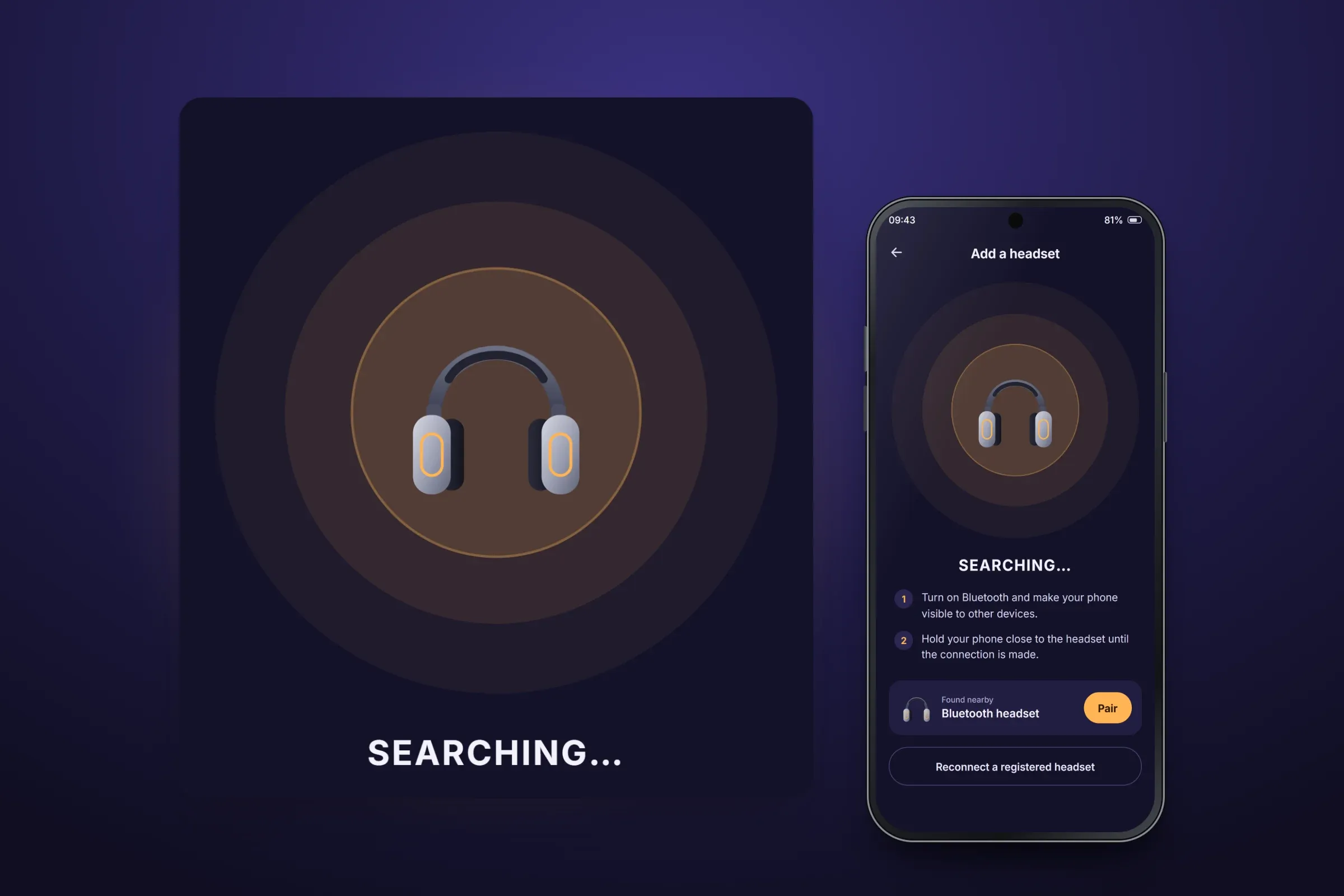
Searching for the headset. Close-ups on phones: tap any image for the full screen. Internet radio through the headset
The owner chooses a station and controls playback from the app. This is internet radio played by the phone; the headset is not tuned by the app.
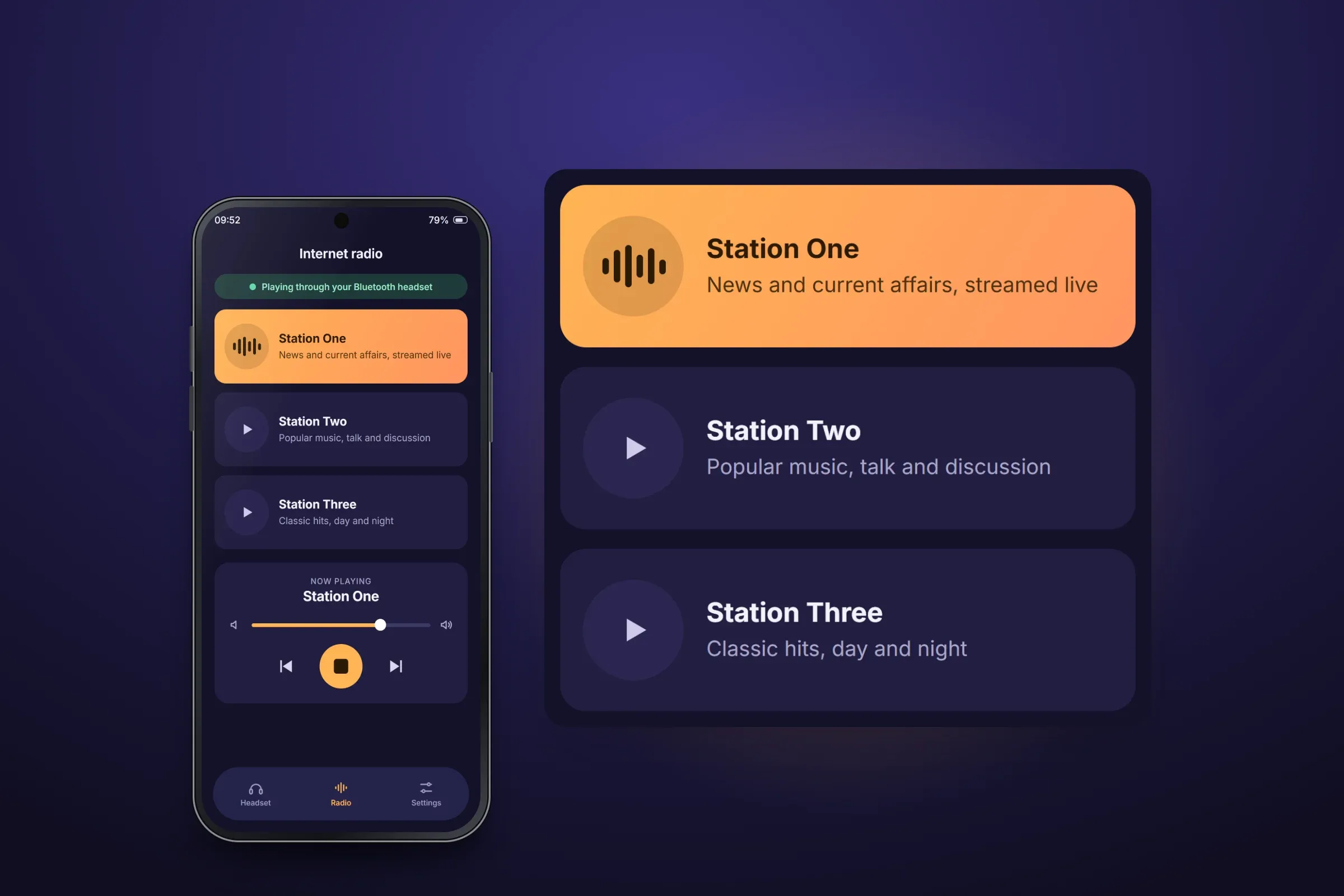
Choosing a station. Close-ups on phones: tap any image for the full screen.

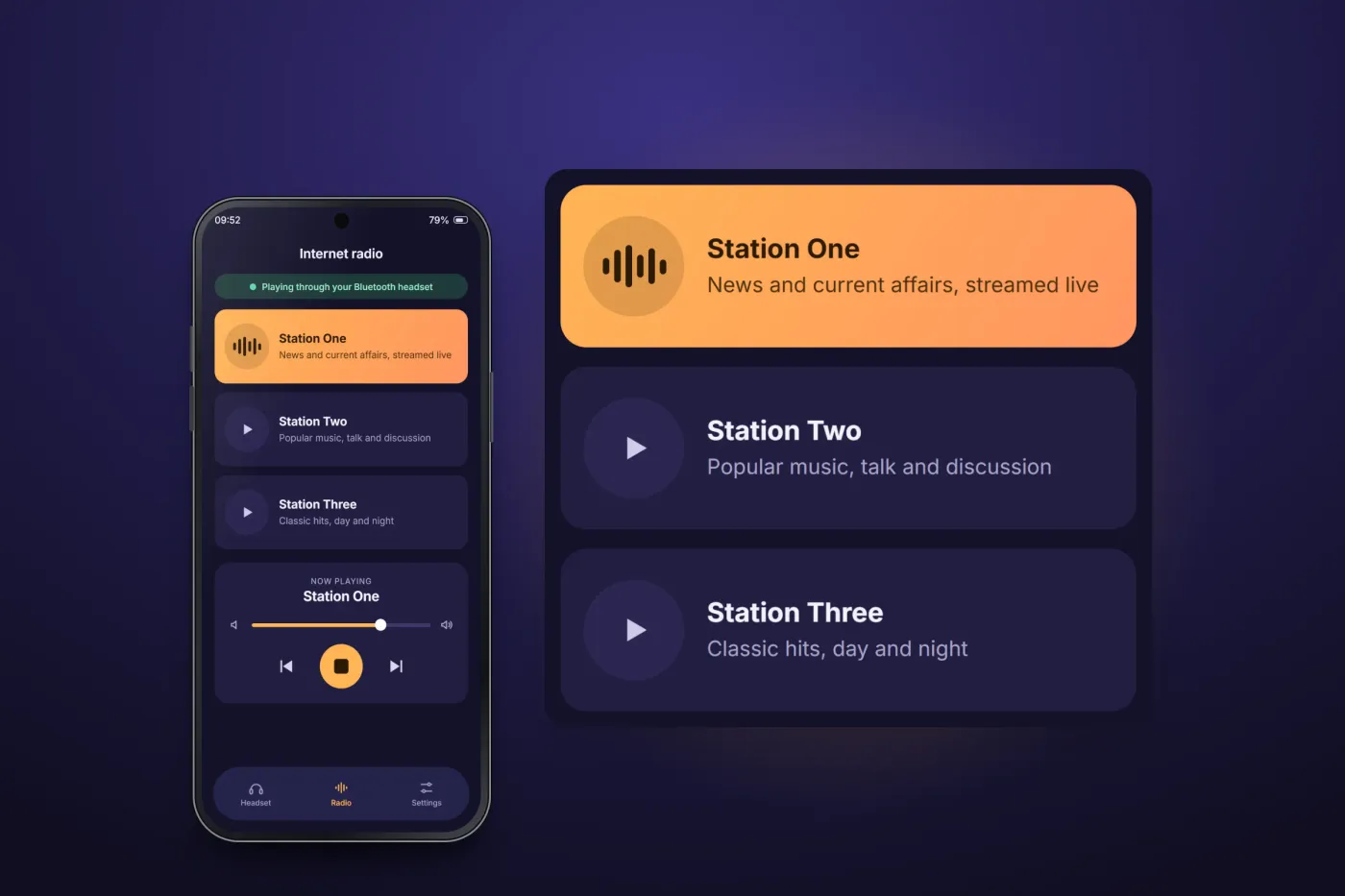
About these images: the screens are recreated for this case study, with neutral naming and example data in place of the client's brand and stations. The headset is a simple drawing. They follow the app's functions, but the layouts are illustrative and they are not screenshots of it.
Related services
The services behind this project
- Flutter app development One Flutter codebase for iOS and Android: new apps, Bluetooth devices, native bridges, the back end behind them, and moving on from FlutterFlow.
- Android app development Native Android apps in Kotlin and Java: new builds, existing codebases, device connections, target API updates and Google Play release.